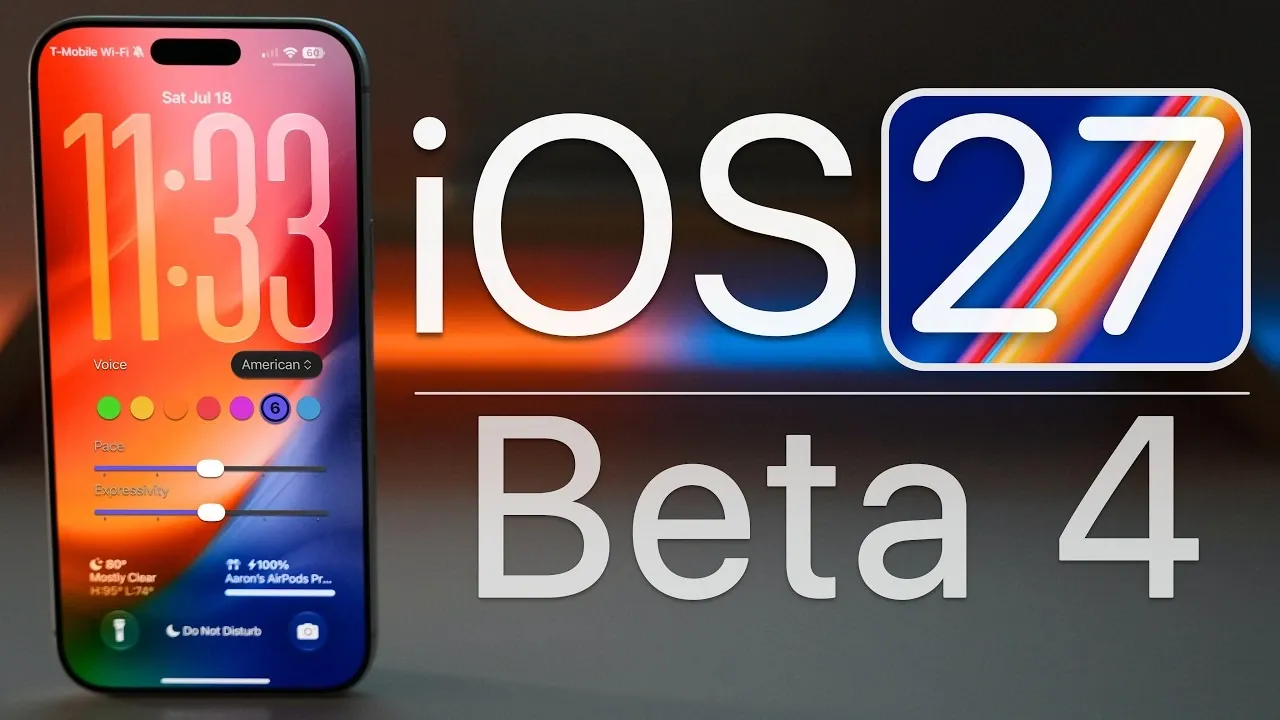
Every June, Apple previews the next version of iOS, and by autumn the beta has been refined through many builds. iOS 27 is no different: after months of developer and public betas, a clear picture of its most useful additions has emerged. Before you tap the update button, or install a beta on your main phone, it is worth knowing what you are getting, what still feels unfinished and who should wait. This guide covers four of the best features reported so far, based on early hands-on coverage, and ends with practical advice on installing betas safely.
In this article
- A Quick Note on What a Beta Is
- 1. A More Capable Siri
- 2. Describe a Shortcut or Safari Extension in Plain Language
- 3. Messages Improvements
- 4. Natural-Language Calendar and Reminders
- A Bonus: Independent Volume Settings
- Which Phones Get iOS 27?
- Should You Install the Beta?
- How to Prepare Safely If You Do Install a Beta
- Battery and Performance in Betas
- What to Expect Between Now and the Final Release
- How to Test a New Feature Properly
- What Might Still Change Before Release
- Update Day Checklist
- Frequently Asked Questions
- The Bottom Line
A Quick Note on What a Beta Is
A beta is pre-release software. Apple uses it to find bugs, so features can change, break or disappear before the final version. That is why early impressions, including those in this article, describe how the features behave in testing. Results can differ on your phone, and Apple may adjust things before general release. Treat anything below as a preview, not a guarantee.
1. A More Capable Siri
SlashGear’s two-month review of the iOS 27 beta puts the new Siri at the top of its list. It reportedly answers questions more reliably and uses your personal context, such as your calendar and contacts, to handle basic tasks. The reviewer also noted caveats: some simple commands, such as turning on lights, now take longer, and Siri may fail a request on the first try. That is typical for a major assistant rebuild, which often improves complex requests before polishing quick, simple ones.
 Also readNot Receiving Texts on Android? 10 Fixes I Try, in This Order
What to try
- Ask for information that needs context, such as what is on your calendar next week
- Combine steps in one request, and see whether Siri handles them
- Check smart home commands, because response time may differ from what you are used to
- Repeat a request if it fails, since first-try failures were reported
2. Describe a Shortcut or Safari Extension in Plain Language
One of the more interesting additions is the ability to create Shortcuts automations or Safari extensions by describing what you want in plain language. Instead of dragging blocks around, you write what you need, and the system builds it. As with any AI-generated output, it can make mistakes or misfire, so test every automation before you trust it with anything important. Safari extensions you create sync through iCloud to your iPad and Mac, which makes the feature even more useful if you work across devices.
If you are new to AI features in general, our explainer on what a large language model is describes the technology behind tools that turn plain text into actions.
3. Messages Improvements
Messages gets a collection of practical upgrades, according to the same review:
- Failed messages retry automatically, so you no longer need to resend them by hand
- Progress bars appear while messages send
- Contextual suggestions such as Add to Calendar appear when a message mentions a plan
- Reactions and Tapbacks are grouped in notifications to cut clutter
- RCS messages with Android users support inline replies
- Dictation accuracy also reportedly improved
None of these features is flashy, but together they remove everyday irritations. Mixed iPhone and Android group chats, which are often awkward, benefit most.
4. Natural-Language Calendar and Reminders
In Calendar and Reminders, you can type a description such as “this weekend”, and the app fills in details like time, date, alerts, locations and contacts. The reviewer noted that it works best with natural phrasing, and that splitting requests into comma- or period-separated chunks often stops details from being detected. In other words, write like a human, not like a form.
A Bonus: Independent Volume Settings
You can now set ringtone, alarm and timer, and system alert volumes separately in Settings, under Sounds and Haptics. There is a catch: only the ringtone can be adjusted with the volume buttons, and the others need a trip to Settings. There is no volume mixer like the one on Android.
Which Phones Get iOS 27?
According to SlashGear, iOS 27 is available on essentially all iPhones that iOS 26 supported, though the article did not list individual models. Always check Apple’s official compatibility list before you plan an update. Note, too, that some features depend on hardware. The review mentions that Apple’s new advanced dictation requires 12GB of RAM, although the author’s phone, which did not meet that requirement, still reported better dictation accuracy. Hardware requirements are one reason a feature you read about may not appear on an older phone.
Should You Install the Beta?
| Situation | Advice |
| Your main and only phone | Wait for the final release; betas can have bugs, battery drain and app problems |
| A spare phone | A reasonable place to test, if the model is supported |
| App developer or enthusiast | Install on a secondary device to test compatibility |
| Reliant on banking or work apps | Wait until app makers confirm support |
| Curious but cautious | Read reviews, and let others find the bugs first |
How to Prepare Safely If You Do Install a Beta
- Back up your iPhone to iCloud and to a computer before you start
- Read the release notes for known issues
- Install on a secondary device first if you can
- Keep at least one other device with a stable iOS version for emergencies
- Report bugs with the Feedback app so that Apple can fix them
- Be ready to return to the stable version if something critical breaks
Battery and Performance in Betas
Betas often drain the battery faster because background processes are not fully tuned. If you do notice faster drain, wait a few days for the system to finish indexing, then check Battery settings for apps that use more power than usual. Our guide to why a phone battery drains so fast lists fixes that apply to most phones, including iPhones in beta.
What to Expect Between Now and the Final Release
- Bug fixes in each beta
- Tweaks to Siri speed and reliability
- Small interface changes
- Possible removal or delay of features that are not ready
- Developers updating apps to support the new version
The last stage, the release candidate, is usually close to the version everyone gets, so many cautious users wait for it.
How to Test a New Feature Properly
- Try it on a task you do often, such as adding events to Calendar or sending a long message
- Compare it with the old way of doing the same task
- Note failures, such as when Siri misses a request, and try again to see if the result changes
- Check whether the feature is available in your language and region
- Look at battery use over a few days
- Send feedback to Apple if you find a repeatable bug
What Might Still Change Before Release
- Siri speed and reliability, since the early build was reported to be slower on some simple commands
- The wording and layout of settings menus
- Which features arrive on older iPhones
- How well third-party apps support new system behaviour
- Battery use, which usually improves as the beta matures
Because Apple keeps iterating, every beta is a snapshot. The best advice is to read recent coverage close to the public release date, when the picture will be much clearer.
Update Day Checklist
- Back up your iPhone to iCloud or a computer
- Charge to at least 50 per cent or plug it in
- Connect to reliable Wi-Fi
- Free up storage if the update asks for more space
- Update your apps afterwards, since developers often release compatibility fixes
- Give the phone a day or two to settle before judging battery life
Frequently Asked Questions
Is the iOS 27 beta safe to install?
It is generally stable enough for testing, but it can cause bugs and battery problems. Install it only on a backed-up secondary device if possible.
Which new feature is the most useful?
That depends on how you use your phone. The new Siri and natural-language Calendar may help most with daily tasks, while Messages upgrades help in mixed chats.
Will my iPhone get iOS 27?
Reports indicate that iOS 27 covers essentially all iPhones that supported iOS 26, but check Apple’s official list for your model.
Can I go back to the previous iOS?
Often yes, but it requires a computer and may erase data that is not backed up. Make a backup before installing any beta.
The Bottom Line
iOS 27 looks like a practical, rather than dramatic, release. A smarter Siri, plain-language Shortcuts, better Messages and easier Calendar entries all aim to save small amounts of time every day. Because these impressions come from a beta, wait for the final version unless you have a spare device and a good backup. Then update with confidence, and enjoy a phone that does a bit more for you with less effort.