

Your laptop used to last a full workday on battery. Now it barely gets through a long meeting. Is the battery worn out, or is something else draining it? Windows 11 can answer that question for you, and it doesn’t need any extra software.
Hidden inside Windows is a tool that generates a detailed battery report: how much charge your battery can hold today compared with when it was new, how many charge cycles it has gone through, and how its estimated life has changed over time. This guide shows you how to run it, how to read it, and what to do with the results.
In this article
Why Laptop Batteries Lose Capacity
Every lithium-ion battery slowly loses capacity as it ages. Each charge cycle, heat exposure and long stretches at 100% contribute to chemical wear inside the cells. A typical laptop battery is designed to keep roughly 80% of its original capacity after several hundred full cycles, though the exact rating varies by manufacturer.
 Also readUSB Device Not Recognized in Windows 11? 11 Fixes That Work
That means a two- or three-year-old laptop losing an hour or two of runtime is often normal wear, not a defect. The battery report tells you exactly how much capacity is gone.
How to Generate a Battery Report in Windows 11
The report comes from a built-in command called powercfg. Microsoft documents the tool’s options in its powercfg command-line reference, but you only need one command.
- Open Terminal. Right-click the Start button and choose Terminal. Command Prompt or PowerShell both work, and you don’t need admin rights for this.
- Run the command. Type the following and press Enter:
powercfg /batteryreport - Find the file. Windows will reply with the location where it saved the report, usually something like
C:\Users\YourName\battery-report.html. - Open it. Paste that path into File Explorer or your browser’s address bar. The report opens as a web page.
Want it saved somewhere easier to find? Use:powercfg /batteryreport /output "C:\battery-report.html"
How to Read the Battery Report
The report is long, but only a few sections matter for most people.
Installed Batteries: Design vs Full Charge Capacity
Near the top you’ll see two numbers in milliwatt-hours (mWh):
- Design Capacity: what the battery held when new
- Full Charge Capacity: what it holds today
Divide the second by the first to get battery health. For example, if the design capacity is 56,000 mWh and the full charge capacity is 42,000 mWh, your battery is at 75% of its original capacity.
A rough rule of thumb:
- 85–100%: healthy
- 70–85%: noticeable wear, but usually still usable
- Below 70%: runtime will feel short, so replacement is worth considering
Cycle Count
Also in the Installed Batteries section, Cycle Count shows how many full charge cycles the battery has completed. One cycle equals 100% of capacity used, which can be split across several partial charges. Some laptops don’t report this and show a dash instead.
Battery Capacity History
This table shows full charge capacity over time. A slow, steady decline is normal. A sudden drop can point to a calibration issue or a failing cell.
Battery Life Estimates
Near the bottom, Windows estimates how long the battery should last at full charge based on your actual usage, compared with the estimate at design capacity. This is the most practical number: it tells you, in hours and minutes, how much runtime you’ve lost.
What to Do if Your Battery Health Is Low
1. Rule Out Software Drain First
If the battery report shows good health but runtime is still poor, the problem is likely software. Go to Settings → System → Power & battery → Battery usage to see which apps are consuming the most power. Browsers with dozens of tabs, sync tools and game launchers are frequent culprits. Our guide to fixing high CPU usage on Windows 11 covers this in detail.
2. Use Battery-Saving Settings
- Turn on Energy Saver when unplugged
- Lower screen brightness, which is one of the biggest power draws
- Choose a lower refresh rate if your display supports 120Hz or higher
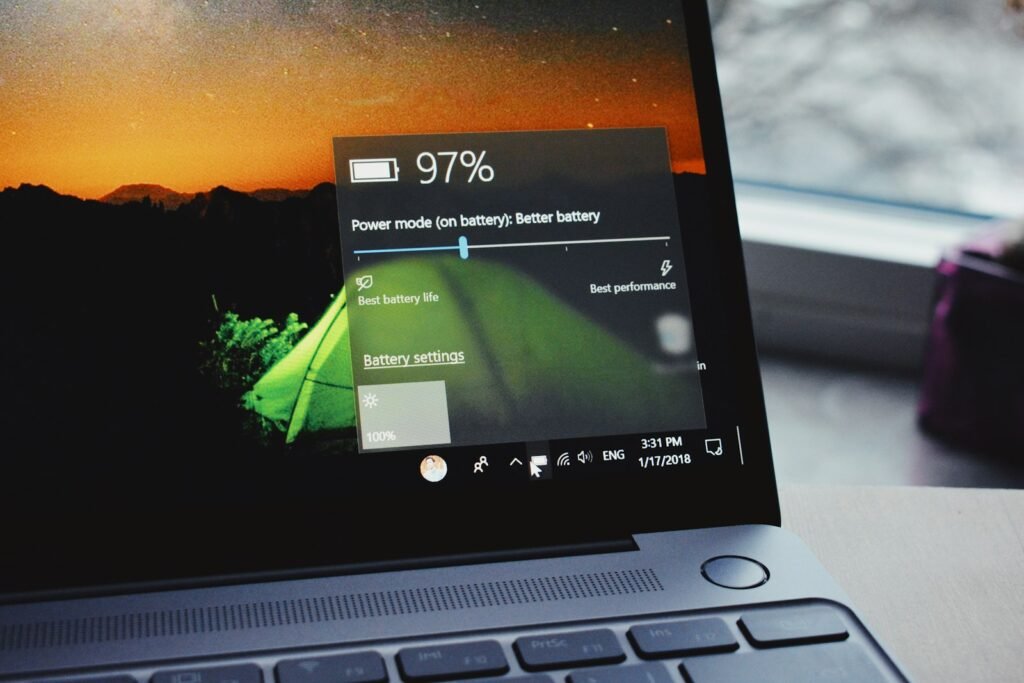
- Set the power mode to Best power efficiency on battery
3. Enable Your Manufacturer’s Charge Limit
Most laptop brands, including Lenovo, Dell, HP, ASUS and Samsung, offer a setting in their companion app that stops charging at around 80%. If your laptop stays plugged in most of the day, this is one of the best ways to slow future battery wear.

4. Consider a Replacement
When health drops below about 70% and runtime no longer fits your day, a new battery often makes an old laptop feel new again, and it costs far less than a replacement laptop. Use a genuine or high-quality battery matched to your exact model number. If your laptop is out of warranty, a reputable repair shop can usually fit one in under an hour.
If the laptop is also slow, it may be worth reviving rather than replacing. See our guide to speeding up a slow Windows 11 laptop.
Bonus: Check Which Apps Are Draining Power With an Energy Report
The same powercfg tool has a second trick. Running powercfg /energy from an administrator Terminal watches your system for 60 seconds and produces an energy-report.html file listing power-efficiency problems. These include USB devices that never enter low-power mode, processor power settings that keep the CPU busy, and drivers that block sleep. Close your apps before running it so the report reflects the system itself.
Don’t be alarmed by a long list of warnings. Most laptops show a few. Look for repeated errors that mention a specific device or driver, and check for an updated driver from your laptop maker’s support site. Combined with the battery report, this tells you whether short runtime is down to a worn battery, a misbehaving device, or both.
Signs Your Battery Needs Attention Now
Battery health is a slow-moving number, but some symptoms need immediate action:
- The laptop shuts off suddenly at 20–30% charge
- The trackpad or keyboard area is lifting or bulging
- The case doesn’t sit flat on a desk anymore
- Windows shows “Consider replacing your battery”
A swollen battery can damage the trackpad, screen and chassis, and in rare cases it’s a safety risk. Stop using the laptop on battery and get it serviced.
Frequently Asked Questions
Does the battery report work on every laptop?
It works on nearly all Windows 10 and Windows 11 laptops. A few models don’t report cycle count or capacity history, but design and full charge capacity almost always appear.
Is it bad to keep my laptop plugged in all the time?
Keeping a battery at 100% and warm for long periods speeds up wear. Using a manufacturer’s 80% charge limit is the easy fix.
Can I recalibrate my battery to get capacity back?
Calibration, meaning a full charge followed by a full drain, can correct an inaccurate percentage reading, but it doesn’t restore lost chemical capacity.
How often should I check battery health?
Every few months is plenty, or whenever runtime suddenly drops.
The Bottom Line
You don’t need to guess whether your laptop battery is worn out. One powercfg /batteryreport command shows you exactly how much capacity is left, how many cycles it has been through, and how much runtime you’ve lost. If health is still good, fix the software drain. If it’s low, a replacement battery is usually the most cost-effective upgrade you can make. Explore more guides in our Laptops & PCs section.

1 Comment