

If Windows 11 says “USB device not recognized”, the quickest fixes are to try a different port and cable, restart the PC, then reinstall the device and USB controllers in Device Manager. If the error keeps coming back, turn off USB selective suspend and update your chipset drivers. Those steps fix the vast majority of cases, and none of them needs extra software.
I have hit this error with flash drives, a phone, an external SSD and even a wireless mouse dongle. The cause was different every time, so the order you try things in matters. Below are 11 fixes, starting with the 30-second checks and working up to the deeper driver and power settings.
In this article
- What “USB device not recognized” actually means
- Quick checks before you change any settings
- Fix the drivers in Device Manager
- Stop Windows from powering the port down
- Deeper fixes for stubborn cases
- Which fix to try first: a quick guide
- When the USB device itself is the problem
- Frequently asked questions
- Final thoughts
What “USB device not recognized” actually means
The full message usually reads: “One of the USB devices attached to this computer has malfunctioned, and Windows does not recognize it.” In plain terms, Windows noticed something was plugged in but could not identify it or load a working driver.
 Also readLaptop Keeps Disconnecting From Wi-Fi? 10 Fixes for Windows 11 That Actually Stick
According to Microsoft’s own troubleshooting article, the common causes are:
- An unstable or corrupt USB driver
- Missing Windows updates
- Unstable or corrupt USB controllers
- The device entering selective suspend (a power-saving mode)
- Outdated motherboard (chipset) drivers
Add physical problems such as a damaged cable, a loose port or a device that needs more power than the port gives, and you have the full list of suspects.
Quick checks before you change any settings
1. Try a different USB port
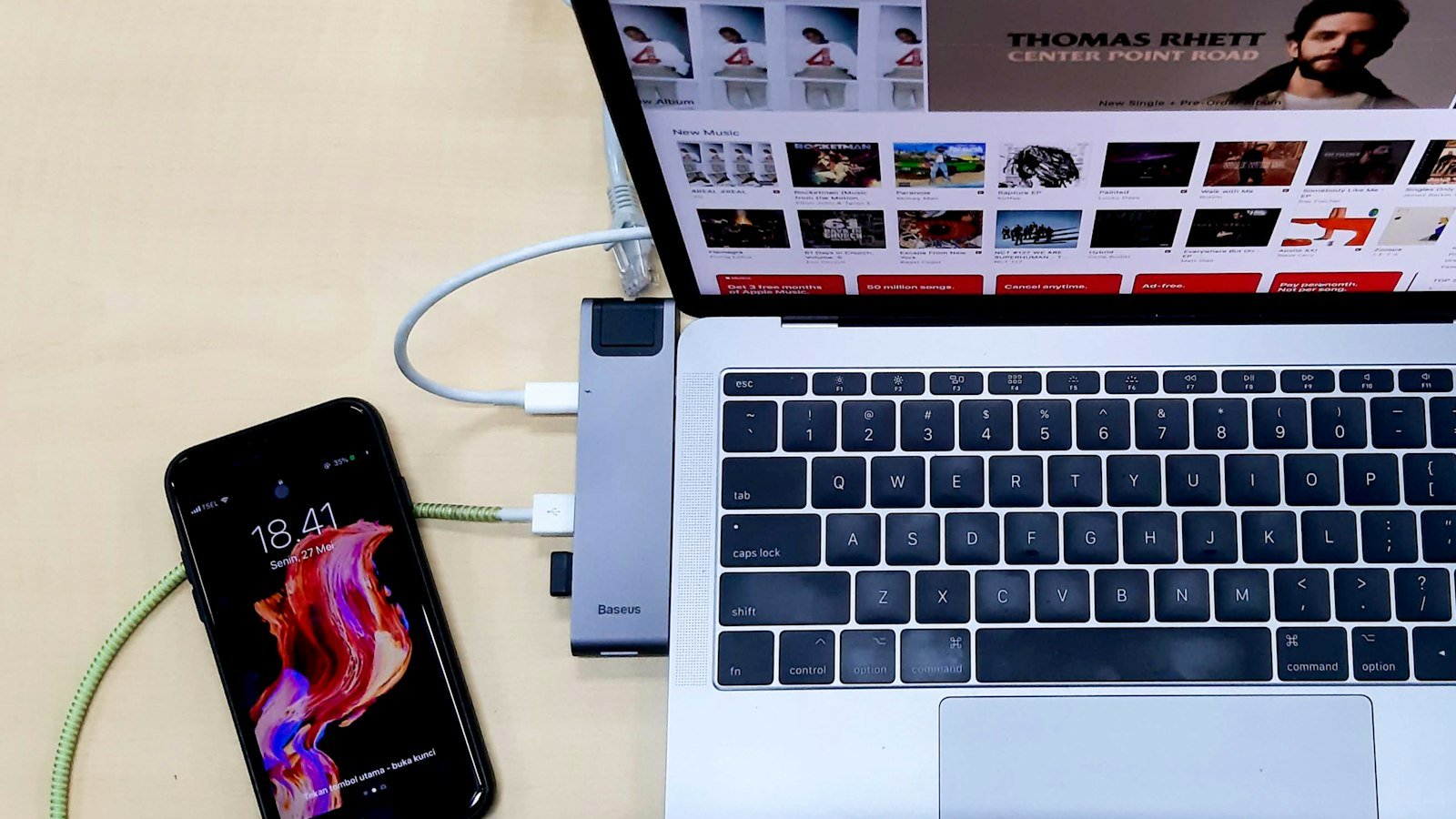
Move the device to another port, ideally one directly on the PC rather than a hub or front-panel port. On desktops, the ports on the back connect straight to the motherboard and are usually more reliable. If one port works and another does not, the problem is the port, not Windows.
2. Swap the cable
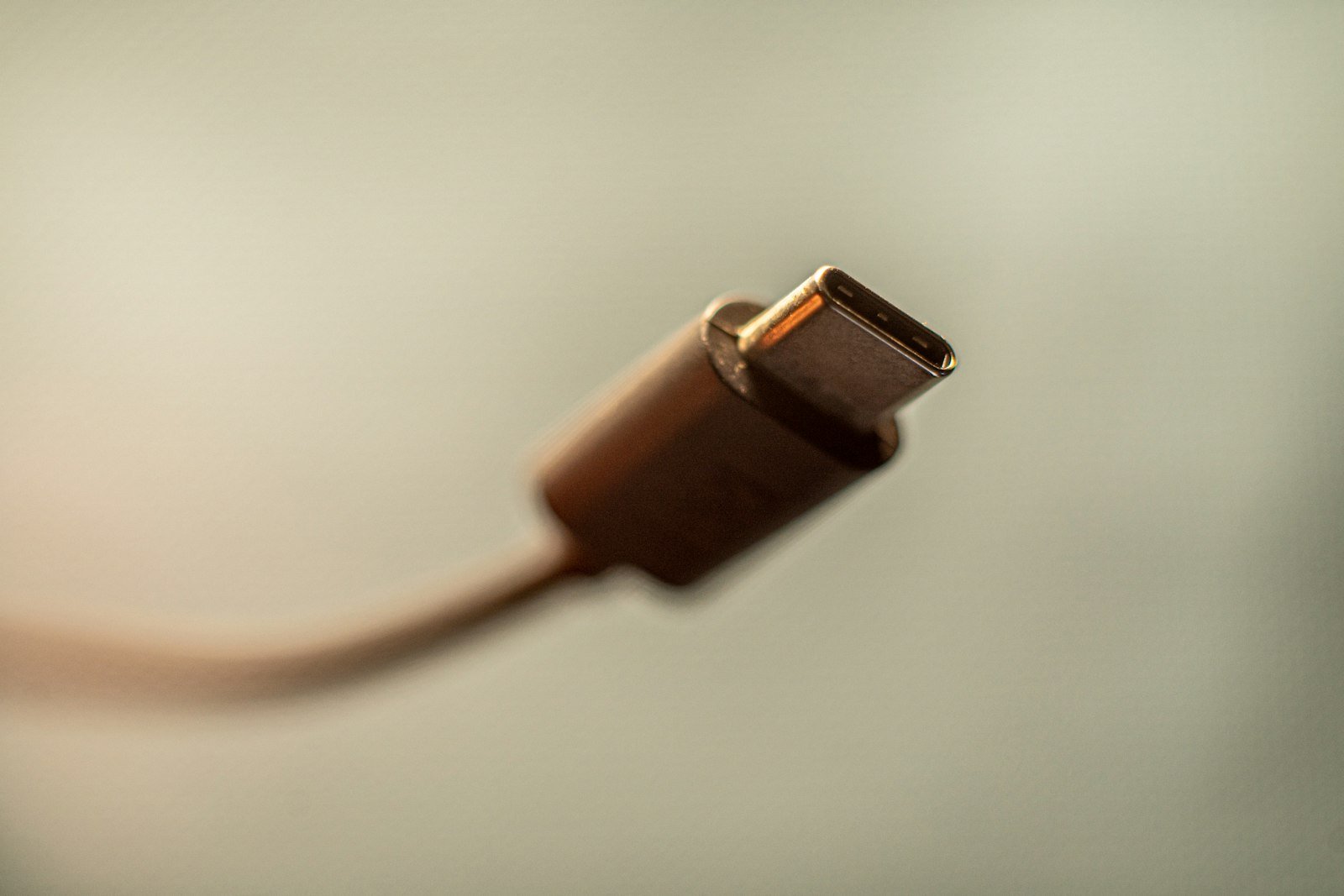
This catches more people than any other fix. Many cheap USB cables are charge-only: they carry power but have no data wires. Your phone will charge, but Windows will never see it properly. Try a cable you know transfers data.
3. Test the device on another computer
If the device fails on a second PC too, the device itself is likely faulty. If it works elsewhere, keep going, because the issue is on your Windows 11 machine.
4. Restart properly, and fully power down
A normal restart reloads drivers. If that fails, shut down, unplug the power cable (or hold the power button on a laptop for a few seconds after shutdown), wait a minute, then start again. This clears the USB controller state, which a quick restart sometimes leaves alone.
Fix the drivers in Device Manager
5. Uninstall the device and reconnect it
- Right-click the Start button and choose Device Manager.
- Look for the device under Universal Serial Bus controllers, Disk drives or Other devices. A broken entry often shows a yellow warning icon or the name “Unknown USB Device (Device Descriptor Request Failed)”.
- Right-click it and choose Uninstall device.
- Unplug the device, wait about a minute, and plug it back in. Windows should load a fresh driver automatically.
6. Reinstall all USB controllers
Microsoft recommends this when the controllers themselves are unstable. In Device Manager, expand Universal Serial Bus controllers, right-click each entry and uninstall it, then restart. Windows reinstalls every controller on boot.
Tip: if you use a USB keyboard and mouse on a desktop, they will stop working when you uninstall their controller. Do this step last and simply restart with the power button if needed.
7. Install Windows Update and optional driver updates
Go to Settings > Windows Update and install everything available. Then open Advanced options > Optional updates and check the driver updates section. Manufacturers often push USB and chipset fixes here, and they do not install automatically.
Stop Windows from powering the port down
8. Disable USB selective suspend
Selective suspend lets Windows cut power to idle USB devices to save energy. Some devices, especially external drives, do not wake up cleanly and then show as “not recognized”.
- Open Control Panel and go to Power Options.
- Next to your active plan, click Change plan settings, then Change advanced power settings.
- Expand USB settings > USB selective suspend setting.
- Set it to Disabled for “Plugged in” and, on a laptop, for “On battery”.
- Click Apply and OK.
9. Turn off power saving on USB Root Hubs
In Device Manager, expand Universal Serial Bus controllers, double-click each USB Root Hub entry, open the Power Management tab and untick “Allow the computer to turn off this device to save power”. Not every PC shows this tab, so skip it if yours does not.
Deeper fixes for stubborn cases
10. Update chipset drivers from the PC maker
The chipset driver tells Windows how to talk to the motherboard, including the USB controllers. Visit the support page for your laptop or motherboard brand (Dell, HP, Lenovo, ASUS, MSI and others), enter your model, and install the latest chipset driver. For desktops with Intel or AMD boards, the board maker’s page is the safest source.
11. Give the drive a letter in Disk Management
Sometimes a USB drive is recognized but never appears in File Explorer because it has no drive letter. Right-click Start, open Disk Management, find the drive, right-click its partition and choose Change Drive Letter and Paths > Add. Do not format anything here unless you are happy to erase the drive.
If your PC also feels sluggish while you troubleshoot, our guide to fixing a slow Windows 11 laptop covers the background services and startup apps that can make driver problems worse.
Which fix to try first: a quick guide
| What you see | Most likely cause | Try first |
|---|---|---|
| Phone charges but no files show | Charge-only cable or USB mode | Fix 2, then set the phone to “File transfer” |
| Error appears after sleep | Selective suspend | Fixes 8 and 9 |
| Fails in one port only | Faulty or loose port | Fix 1 |
| “Device Descriptor Request Failed” | Driver or power problem | Fixes 4, 5 and 6 |
| Drive detected but not in File Explorer | No drive letter | Fix 11 |
| Fails on every computer | Faulty device | Replace or repair the device |
When the USB device itself is the problem
If none of the fixes work and the device fails on other PCs, it is probably the hardware. Flash drives wear out, external drive enclosures fail, and phone ports collect lint. Before you give up on a phone, it is worth checking the charging port for dirt, and for wireless accessories our guide to Bluetooth headphones not connecting walks through similar pairing and driver checks.
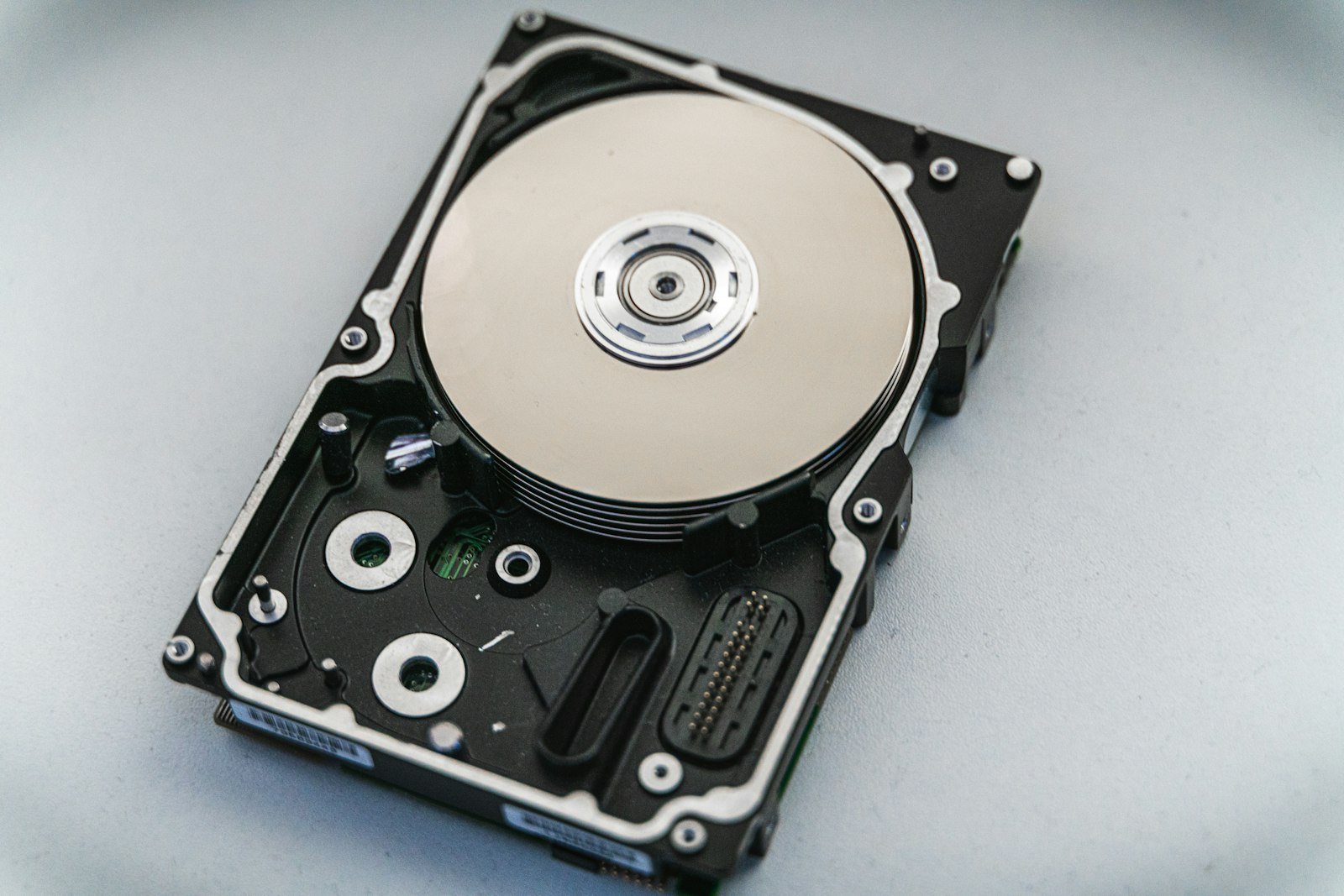
For an external hard drive with important files, stop trying random fixes once you suspect hardware failure. Repeated plugging can make a failing drive worse, and a data recovery service is safer than DIY.
Frequently asked questions
Why does Windows 11 keep saying USB device not recognized?
If the message keeps coming back, the cause is usually power management (selective suspend), an unstable USB controller driver, or a faulty cable or port. Disable selective suspend, reinstall the USB controllers and try a known-good data cable.
Can a USB cable cause “device not recognized”?
Yes. Charge-only and damaged cables are one of the most common causes. The device gets power, so it looks connected, but Windows cannot read its data.
Is there a Windows 11 USB troubleshooter?
Windows 11 includes the Get Help app and automatic troubleshooters, but for USB errors the manual steps in Device Manager and Power Options are faster and more reliable.
Will reinstalling USB controllers delete my files?
No. Uninstalling USB controllers only removes the drivers, which Windows reinstalls on restart. Your files and the data on your USB devices are not touched.
Final thoughts
The “USB device not recognized” error on Windows 11 looks alarming, but it is almost always fixable at home. Start with the physical checks, because a bad cable or port is the most common culprit. Then reinstall the drivers, stop Windows from suspending the port, and update your chipset drivers. For more step-by-step help with common PC problems, see our Windows and laptop troubleshooting guide.
