
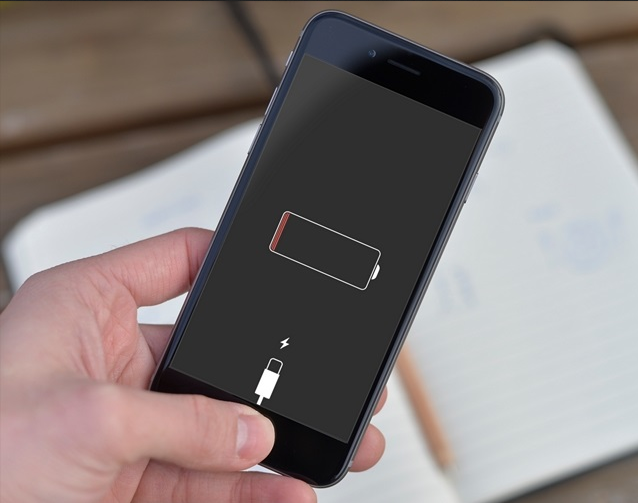
You charged your phone to 100% at night. By 2 p.m. it’s begging for a charger. Sound familiar? Fast battery drain is one of the most common phone complaints, and the good news is that most causes are fixable in a few minutes.
In this guide, I’ll explain what’s really eating your battery and walk you through nine fixes that make a measurable difference. If your phone is simply too old to keep up, our list of phones with the best battery life is a good place to start shopping.
In this article
First, Understand How Phone Batteries Age
Every smartphone uses a lithium-ion battery, and every lithium-ion battery wears out. Each full charge cycle slightly reduces its maximum capacity. According to Battery University, heat and keeping a battery at very high or very low charge levels speed up this wear.
 Also readNot Receiving Texts on Android? 10 Fixes I Try, in This Order
Most phone batteries keep around 80% of their original capacity after 500 to 1,000 full cycles. For a typical user, that’s roughly two to three years. So if your phone is older than that, part of the problem may be the battery itself, not your settings.
How to check battery health:
- iPhone: Settings > Battery > Battery Health & Charging.
- Samsung: Samsung Members app > Diagnostics > Battery status.
- Pixel: Settings > Battery > Battery health (on recent models).
If health is below 80%, a battery replacement will likely help more than any setting change.
The 7 Most Common Causes of Fast Battery Drain
- Screen brightness and refresh rate. The display is usually the single biggest power drain. A 120Hz screen at full brightness uses far more energy than a 60Hz screen on auto-brightness.
- Weak mobile signal. When signal is poor, your phone boosts its radio power to stay connected. Basements, rural areas and crowded buildings all cause this.
- Background app activity. Social media, shopping and navigation apps often refresh, track location and sync data even when you’re not using them.
- Location services. Apps that request “always” location access keep GPS hardware working in the background.
- 5G in weak coverage areas. 5G is efficient where it’s strong, but constantly searching for a patchy 5G signal can drain power.
- Heat. Gaming, charging under a pillow or leaving your phone in a hot car all stress the battery and drain it faster.
- Software bugs. A buggy app or a fresh system update can cause abnormal drain for a few days while the phone re-indexes files.
9 Fixes That Actually Work
1. Find the Real Culprit in Battery Settings
Before changing anything, open your battery usage screen. Both iOS and Android show which apps used the most power over the last 24 hours or 10 days. If one app is using 30% or more and you barely opened it, you’ve found your problem.
2. Turn On Adaptive or Auto Brightness
Manual maximum brightness is a battery killer. Turn on auto-brightness and let your phone adjust to your surroundings. Using dark mode on an OLED screen also saves noticeable power, because black pixels are switched off.
3. Lower the Refresh Rate When You Don’t Need It
If your phone has a 120Hz display, try the adaptive setting rather than forcing 120Hz all the time. On Samsung, look under Display > Motion smoothness. On iPhone Pro models, ProMotion already adapts automatically.
4. Restrict Background Activity
- iPhone: Settings > General > Background App Refresh. Turn it off for apps that don’t need it.
- Android: Settings > Apps > [App] > Battery. Set rarely used apps to “Restricted” or “Optimized.”
You’ll still get notifications from messaging apps, so don’t worry about missing important messages.
5. Audit Location Permissions
Go through your location settings and change most apps to “While using the app.” Only navigation and a few essential apps really need “Always” access.
6. Switch to 4G or LTE in Weak 5G Areas
If you live or work somewhere with patchy 5G, setting your phone to prefer LTE can extend battery life by a meaningful margin. On iPhone, choose 5G Auto rather than 5G On.
7. Use Wi-Fi Whenever You Can
Wi-Fi uses less power than mobile data, especially when signal is weak. Connecting at home and at work is one of the easiest battery wins available.
8. Keep Your Phone Cool and Charge Smarter
Avoid heavy gaming while charging and remove thick cases if your phone gets hot. Turn on optimized or adaptive charging, which holds the battery at 80% overnight and finishes just before you wake up. For more on safe charging, read our explainer on how fast charging really works.
9. Update, Then Restart
Software updates often include battery fixes. After any major update, give your phone two or three days to settle, then restart it. If drain continues, check whether one app was updated around the same time and reinstall it.
Quick Comparison: Which Fix Saves the Most?
| Fix | Effort | Typical impact |
|---|---|---|
| Auto-brightness + dark mode | 1 minute | High |
| Restrict background apps | 5 minutes | High |
| Location permissions audit | 5 minutes | Medium |
| LTE in weak 5G areas | 1 minute | Medium to high |
| Adaptive refresh rate | 1 minute | Medium |
| Battery replacement (health under 80%) | Repair visit | Very high |
Does Power Saving Mode Really Help?
Yes, but think of it as an emergency tool rather than a daily setting. Low Power Mode on iPhone and Power Saving on Android cut background activity, visual effects and sometimes performance. It’s perfect when you’re at 20% and away from a charger, but you’ll notice a slower phone if you leave it on permanently.
Myths You Can Safely Ignore
- Closing all apps saves battery. Not really. Reopening apps from scratch often uses more power than leaving them suspended.
- You must drain to 0% before charging. That was true for old nickel batteries. Lithium-ion batteries prefer partial charges.
- Overnight charging ruins batteries. Modern phones manage overnight charging well, especially with optimized charging turned on.
When It’s Time to Replace the Battery or Phone
If your battery health is under 80%, the phone shuts down at 15 to 20%, or it gets hot while idle, the battery is probably worn out. A replacement typically costs far less than a new phone and can make an older device feel new again.
If the phone is also slow or no longer gets updates, upgrading may be the better choice. Our guide to the best budget 5G phones covers affordable options with big batteries.
For official tips from Google, the Android help center has device-specific battery guidance.
Frequently Asked Questions
Is it normal for a new phone to drain fast? Yes, for the first few days. New phones index files, restore backups and sync photos, which uses extra power.
Does dark mode really save battery? On OLED screens, yes. On LCD screens, the savings are minimal.
Should I keep my phone between 20% and 80%? It helps long-term battery health, but optimized charging handles most of this for you automatically.

3 Comments