
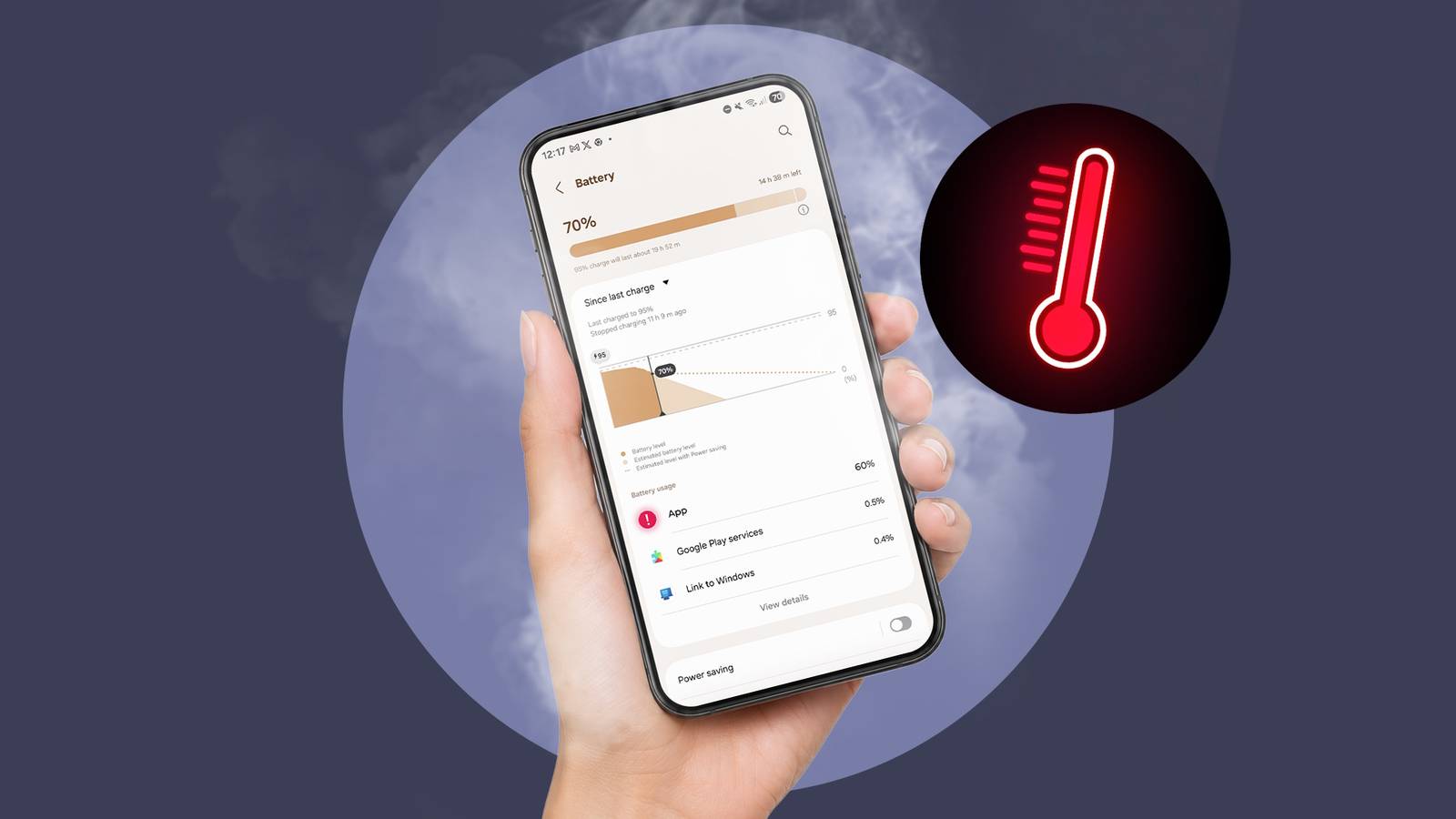
By 3 p.m. most days, my phone used to beg for a charger. Sound familiar? The good news: you rarely need a new phone. In most cases, a few settings, a couple of habits and one or two app clean-ups are enough. In this guide I’ll walk you through how to improve phone battery life step by step, and I’ll also cover the problems that usually travel with poor battery: slow charging, overheating, full storage and a laggy touchscreen.
If you also use a laptop all day, my guide on fixing a laptop running slow on Windows 11 uses many of the same power-saving ideas.
In this article
- Why Your Phone Battery Drains So Fast
- 12 Ways to Improve Phone Battery Life
- iPhone Battery Draining Fast? Try This First
- Phone Charging Slowly on Android? Here’s Why
- Why Is My Phone Overheating?
- Free Up Storage on Android to Help Performance
- Android Phone Not Connecting to Wi-Fi?
- Phone Screen Not Responding to Touch
- Thinking of Upgrading? How to Transfer Data Between Phones
- Daily Habits That Protect Your Battery Long Term
- Final Thoughts
- FAQs
Why Your Phone Battery Drains So Fast
Every lithium-ion battery loses capacity over time. That’s normal. But most sudden drops come from software, not hardware. The usual suspects are:
 Also readNot Receiving Texts on Android? 10 Fixes I Try, in This Order
- Background apps that keep syncing, tracking location or showing live notifications.
- A bright, high-refresh-rate screen, which is the single biggest power user on most phones.
- Weak signal, which forces the modem to work harder to stay connected.
- Heat, which both drains and slowly damages the battery.
- A fresh software update, after which the phone re-indexes files for a day or two.
Google’s own battery drain troubleshooting guide confirms that some extra drain right after an update is expected and should settle within a few days.
12 Ways to Improve Phone Battery Life
1. Find the Apps That Eat Your Battery
Start with data, not guesses. On Android, open Settings > Battery > Battery usage. On iPhone, go to Settings > Battery and scroll to the app list. If a social or shopping app you barely opened sits near the top, restrict its background activity or uninstall it.
2. Turn Down Screen Brightness and Timeout
Turn on adaptive or auto brightness and set the screen to turn off after 30 seconds. If your phone has a 120Hz display, try the “adaptive” or “standard” refresh setting. You’ll barely notice the difference while scrolling, but your battery will.
3. Use Dark Mode on OLED Screens
On OLED panels, black pixels are switched off. Dark mode in system settings, plus dark themes in apps like YouTube and WhatsApp, gives a small but steady saving.
4. Control Location Access
Set most apps to “Only while using the app.” Weather, food delivery and social apps rarely need your location all day. Leave “Always” only for maps or family-safety apps you truly rely on.
5. Keep Adaptive Battery and Battery Saver On
Android’s Adaptive Battery learns which apps you use and limits the rest. iPhone’s Low Power Mode does something similar. Turn battery saver on automatically at 20% so you never forget.
6. Update Your Phone and Apps
Updates often include power-management fixes. Check Settings > System > Software update on Android or Settings > General > Software Update on iPhone.
7. Cut Down Notifications
Each notification wakes the screen and the processor. Turn off alerts for apps that aren’t urgent. Your focus will improve along with your battery.
8. Watch Your Signal and Wi-Fi
In areas with poor mobile coverage, switch to Wi-Fi when you can. Strong Wi-Fi uses far less power than a modem hunting for a tower.
iPhone Battery Draining Fast? Try This First
If your iPhone battery is draining fast, open Settings > Battery > Battery Health & Charging. If maximum capacity is well below 80%, the battery itself is worn and a replacement is the real fix. If health looks fine, check these:
- Turn off Background App Refresh for apps that don’t need it.
- Disable Always-On Display on Pro models if you don’t use it.
- Limit widgets and Live Activities that update constantly.
- Keep Optimized Battery Charging enabled to slow long-term wear.
Apple explains how temperature and charging habits affect long-term capacity on its battery performance page, which is worth a quick read.
Phone Charging Slowly on Android? Here’s Why
Battery life and charging speed go hand in hand. If your phone is charging slowly on Android, work through this short list:
- Swap the cable first. Cheap or damaged cables are the most common cause.
- Use a matching charger. A 5W adapter will never fast-charge a phone built for 25W or more.
- Clean the port. Lint in the USB-C port stops the plug from seating fully. Use a wooden toothpick gently, never metal.
- Stop using the phone while charging, especially for games or video calls.
- Check for heat. Many phones slow charging on purpose when they get warm.
Why Is My Phone Overheating?
Ask anyone “why is my phone overheating?” and you’ll hear “it’s old.” Usually, it isn’t. Common causes include heavy gaming, navigation in direct sunlight, a thick case during fast charging, and a buggy app stuck running in the background. To cool things down:
- Remove the case while charging.
- Close games and camera apps you’re not using.
- Avoid charging on a bed or pillow, which traps heat.
- Restart the phone to clear a stuck process.
If the phone gets hot while idle and the back feels swollen, stop using it and get the battery checked. A swollen battery is a safety risk.
Free Up Storage on Android to Help Performance
A nearly full phone works harder, which costs battery. Here’s how to free up storage on Android in a few minutes:
- Open the Files by Google app and tap the clean-up suggestions.
- Clear WhatsApp media you’ve already saved elsewhere.
- Back up photos to the cloud, then remove device copies.
- Uninstall apps you haven’t opened in 30 days.
The same idea works on computers, too. See my walk-through on how to free up disk space on Windows 11.
Android Phone Not Connecting to Wi-Fi?
When an Android phone is not connecting to Wi-Fi, it falls back to mobile data and burns more battery. Try these quick fixes:
- Turn Airplane mode on for 10 seconds, then off.
- Forget the network and reconnect with the password.
- Restart your router.
- Reset network settings under Settings > System > Reset options.
If your phone connects but pages won’t load, my guide to Wi-Fi connected but no internet access covers router and DNS fixes in detail.
Phone Screen Not Responding to Touch
A frozen touchscreen sometimes comes from the same stuck app that drains your battery. Before you book a repair:
- Force restart: hold power and volume down (Android) or press volume up, volume down, then hold the side button (iPhone).
- Remove a cracked or thick screen protector.
- Clean the screen and dry your hands.
- Boot Android into Safe Mode to see if a third-party app is the cause.
Thinking of Upgrading? How to Transfer Data Between Phones
If your battery health is very low, a new phone may be the smarter move. Learning how to transfer data between phones is easier than ever:
- Android to Android: use the built-in setup wizard and a USB-C cable for the fastest copy.
- iPhone to iPhone: use Quick Start by placing both phones side by side.
- Android to iPhone: use Apple’s “Move to iOS” app during setup.
- iPhone to Android: most brands offer a switch app, such as Samsung Smart Switch.
Charge both phones above 50% and keep them on the same Wi-Fi network before you start.
Daily Habits That Protect Your Battery Long Term
- Keep charge between roughly 20% and 80% when you can.
- Avoid leaving the phone in a hot car.
- Use a certified charger and cable.
- Turn on your phone’s built-in charging limit or optimized charging feature.
Final Thoughts
Improving phone battery life isn’t about one magic setting. It’s about removing the small drains that add up: bright screens, chatty apps, weak signal and heat. Start with the battery usage screen, fix the top offenders, then build the daily habits above. If battery health is already worn out, a battery replacement is cheaper than a new phone and can make an old device feel new again.
FAQs
Does closing apps save battery?
Not usually. Swiping away apps forces them to reload later, which can use more power. Restrict background activity for problem apps instead.
Is it bad to charge my phone overnight?
Modern phones manage overnight charging well, especially with optimized charging turned on. Just avoid charging under a pillow or in a hot room.
When should I replace my phone battery?
When battery health drops near 80% or the phone shuts down at 20–30%, a replacement is worth it.

2 Comments