
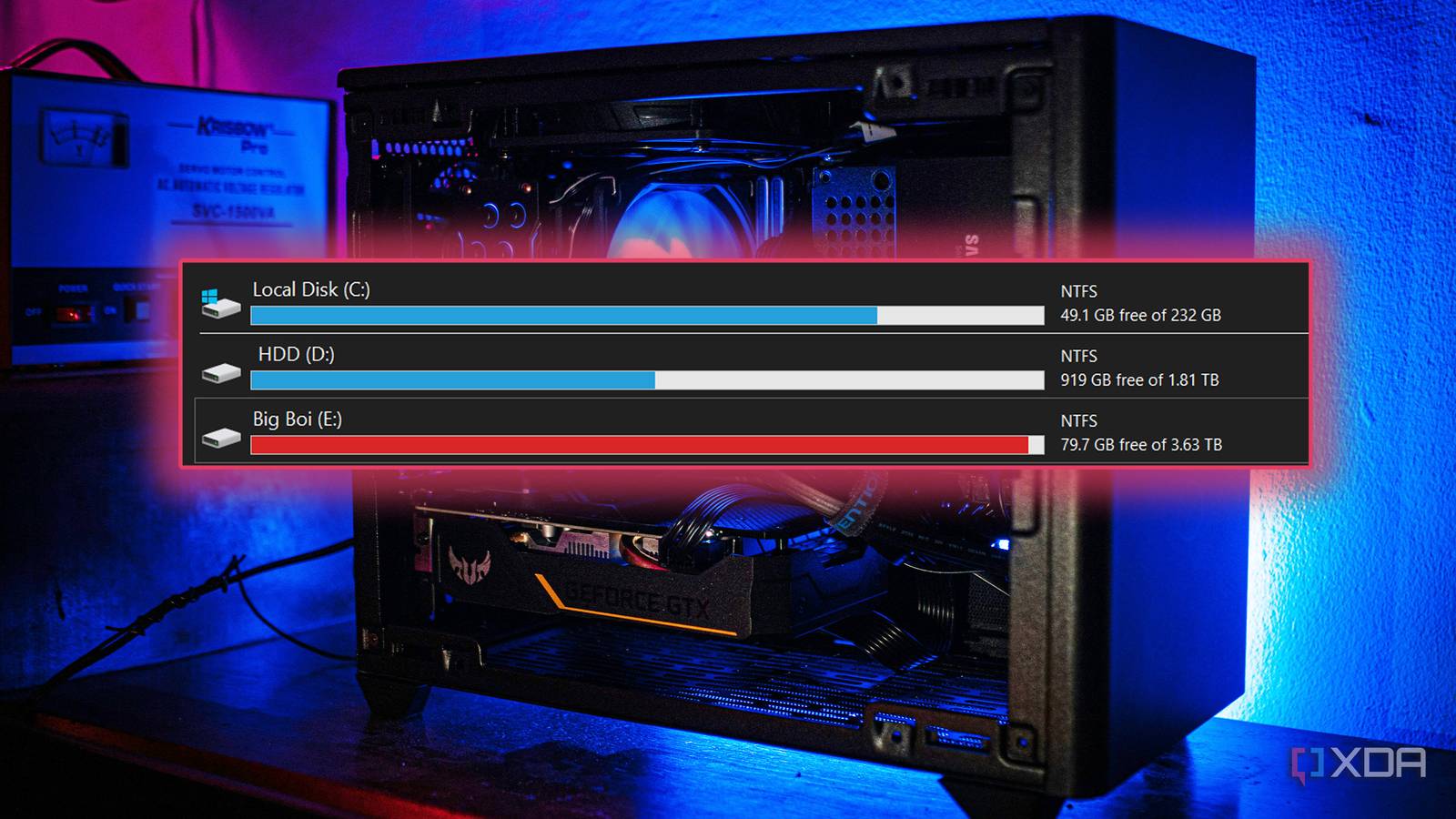
That red bar under your C: drive is more than an eyesore. When storage runs low, Windows can’t install updates, apps slow down and some programs simply refuse to open. In this guide I’ll show you how to free up disk space on Windows 11 using safe, built-in tools first, then smarter options like cloud storage and external drives. I’ll also cover what to do when your external hard drive is not showing up in Windows 11.
Low storage is one of the top reasons for slowdowns. If your PC still feels sluggish after cleaning up, read my guide on fixing a laptop running slow on Windows 11.
In this article
First, See What’s Taking Up Space
- Open Settings > System > Storage.
- Wait for the breakdown to load: Apps, Temporary files, Documents, Pictures and more.
- Click Show more categories to see everything.
This tells you where to focus. If “Temporary files” is huge, start there. If “Apps” is the biggest, uninstalling is your quickest win.
 Also readYouTube Custom Feeds: How to Take Control of Your Homepage
12 Ways to Free Up Disk Space on Windows 11
1. Turn On Storage Sense
Storage Sense automatically removes temporary files and old Recycle Bin items. Go to Settings > System > Storage and switch it on. Microsoft notes in its Storage Sense guide that it works on your system (C:) drive only, so other drives need manual cleanup.
2. Delete Temporary Files
In Storage > Temporary files, tick items like Delivery Optimization files, thumbnails and temporary internet files, then click Remove files. Leave “Downloads” unticked unless you’ve checked that folder.
3. Run Disk Cleanup for System Files
Search for Disk Cleanup, choose C:, then click Clean up system files. This finds old update files that the regular view misses.
4. Remove the Windows.old Folder
After a major upgrade, Windows keeps your previous version for rollback. If your PC has been stable for a couple of weeks, removing it can free a large amount of space. Microsoft’s guide to freeing up drive space explains the trade-off: once deleted, you can’t roll back.
5. Uninstall Apps and Games You Don’t Use
Go to Settings > Apps > Installed apps and sort by size. Big games are often the easiest gigabytes to reclaim.
6. Clean Out the Downloads Folder
Old installers, ZIP files and duplicate PDFs pile up quickly. Sort by size and delete what you don’t need.
7. Empty the Recycle Bin
Deleted files still use space until you empty the bin. Right-click it on the desktop and choose Empty Recycle Bin.
8. Find Large Files
In File Explorer, search your C: drive with size:gigantic to find files over 4GB, or size:huge for 1–4GB. Old videos and virtual machine files often hide here.
9. Use OneDrive Files On-Demand
Turn on Files On-Demand in OneDrive settings. Files stay visible in File Explorer, but only download when you open them. Right-click large folders and choose Free up space.
10. Move Personal Files to Another Drive
Go to Settings > System > Storage > Advanced storage settings > Where new content is saved and point Documents, Music, Photos and Videos to a second drive.
11. Reduce Hibernation File Size
If you never use hibernate, open Terminal (Admin) and run powercfg /hibernate off. This removes the hidden hiberfil.sys file, which can be several gigabytes. Skip this on laptops if you rely on hibernate.
12. Clean App Caches
Browsers, Teams, Spotify and game launchers keep large caches. Clear them from each app’s settings. In browsers, clear “cached images and files.”
Free Up Space With Cloud Storage
Cloud storage is the easiest long-term fix for a small SSD. Good options include:
- OneDrive — built into Windows 11 and great with Files On-Demand.
- Google Drive — the desktop app can “stream” files instead of storing them locally.
- Google Photos or iCloud Photos — move your photo library off the laptop.
Always confirm files have finished syncing before deleting local copies.
External Hard Drive Not Showing Up in Windows 11
Moving files to an external drive is a great way to free space, but it’s frustrating when an external hard drive is not showing up in Windows 11. Work through these steps:
Check the Basics
- Try a different USB port, ideally one directly on the PC, not a hub.
- Try another cable; many USB cables fail without visible damage.
- Plug in the drive’s power adapter if it has one.
- Listen for the drive spinning or look for its light.
Use Disk Management
- Right-click Start and open Disk Management.
- If the drive appears without a letter, right-click it and choose Change Drive Letter and Paths > Add.
- If it shows “Unallocated,” it’s new or wiped; create a New Simple Volume (this erases anything on it).
- If it says “Offline,” right-click and choose Online.
Update or Reinstall Drivers
In Device Manager, expand Disk drives and Universal Serial Bus controllers. Uninstall the drive or any device with a warning sign, then unplug and reconnect.
Turn Off USB Selective Suspend
In Control Panel’s advanced power options, disable USB selective suspend, which can cut power to external drives.
Check the Format
Drives formatted for Mac (APFS or HFS+) won’t show up normally on Windows. Reformat to exFAT if you need it on both, after backing up the data on a Mac.
If you’re using a USB-C hub and the drive won’t appear, my guide on fixing gadget and accessory connection problems covers USB-C hub issues too.
What NOT to Delete When Freeing Up Space
Some folders look like easy targets but can break Windows if you remove them by hand:
- C:\Windows\WinSxS — stores system components. Clean it only with Disk Cleanup or DISM.
- C:\Windows\System32 — core Windows files. Never touch it.
- pagefile.sys — virtual memory. Removing it can cause crashes.
- Program Files folders — always uninstall apps through Settings, not by deleting folders.
- System Restore points — you can reduce their space, but keep at least one recent point.
If you’re unsure about a file, search its name online before deleting, or move it to an external drive first so you can bring it back.
How Much Free Space Should You Keep?
Aim for at least 15–20% free on your system drive. That gives Windows room for updates, temporary files and virtual memory. On SSDs, extra free space also helps maintain performance over time. If a big update fails, low space is often the reason; my guide on Windows 11 high CPU usage and stuck updates explains the connection.
Final Thoughts
Learning how to free up disk space on Windows 11 is mostly about letting the built-in tools do their job. Turn on Storage Sense, clean temporary and system files, remove apps you don’t use, and push big files to the cloud or an external drive. Do a quick check once a month, and that red storage bar won’t come back.
FAQs
Is it safe to delete temporary files in Windows 11?
Yes. Temporary files are recreated when needed. Just double-check the Downloads option before removing.
Why is my C drive full when I haven’t saved much?
Updates, Windows.old, hibernation files, app caches and restore points often take more space than personal files.
Can I delete the WinSxS folder?
No. Never delete it manually. Use Disk Cleanup or the DISM component cleanup instead.
