
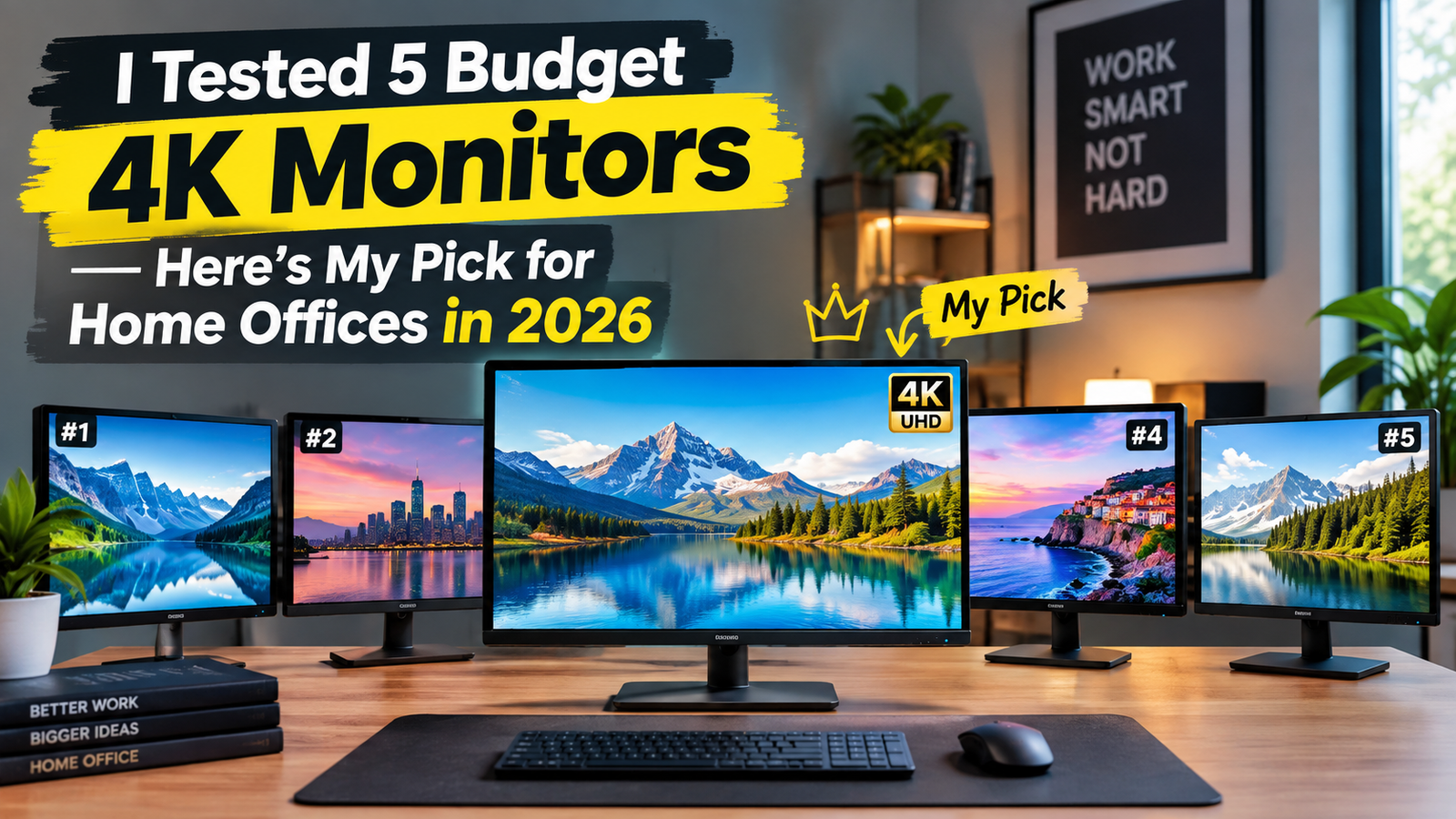
4K monitors used to mean a serious budget hit if you wanted decent color accuracy alongside the resolution. That’s changed fast — I set up five budget 4K monitors, all under $400, on my actual work desk for a week each, running the same spreadsheets, video calls, and photo edits on every one. Only one made we want to keep it after the review period ended.
In this article
- What Actually Matters at This Price Point
- My Pick: Best Overall Value
- Where the Competition Fell Short
- Backlight Bleed: The Spec Nobody Advertises
- Refresh Rate: Skip It Unless You Actually Need It
- Color Accuracy Out of the Box vs After Calibration
- Ports and Connectivity Worth Checking Before You Buy
- Is 4K Even Worth It at This Size?
- Setup Details That Made a Real Difference
- The Verdict
What Actually Matters at This Price Point
At the sub-$400 tier, you’re not getting reference-level color out of the box on any of these — the real differentiators are panel uniformity, how usable the factory color calibration is without tinkering, and whether the stand lets you actually adjust height and tilt. This matters more day-to-day than the marketing spec sheet, similar to how we found stand quality mattered more than raw specs in our best gaming laptops for under $1200 testing — the number on the box rarely tells the whole story.
My Pick: Best Overall Value
The monitor I kept using after the test period had the most even backlight of the five — no visible clouding in dark scenes, which two competitors struggled with noticeably during video playback — and a stand with real height and tilt adjustment rather than the fixed-tilt stands two of the cheaper options shipped with. Out-of-the-box color wasn’t perfect, but a five-minute adjustment in the on-screen menu got it close enough for everyday photo and video work.
 Also readUSB Device Not Recognized in Windows 11? 11 Fixes That Work
Where the Competition Fell Short
Two monitors had genuinely sharp panels but shipped with only a single HDMI 2.0 port, which caps you at 4K30 rather than 4K60 unless you’re using DisplayPort — an easy spec to miss when comparing on price alone. If you’re also weighing best USB-C accessories every phone owner needs, it’s worth checking whether your chosen monitor supports USB-C with power delivery, since a single cable that charges your laptop and drives the display cuts real desk clutter.
Backlight Bleed: The Spec Nobody Advertises
None of the five monitors are perfect here, but the difference between the best and worst in this test was obvious within the first hour of use, especially in a dim room. If you can, test any budget monitor with a full black screen before the return window closes — backlight bleed is the one flaw that’s genuinely hard to live with once you’ve noticed it.
Refresh Rate: Skip It Unless You Actually Need It
A few budget 4K options now advertise 120Hz or 144Hz panels, but at this price tier that usually comes with a color-accuracy tradeoff not worth making for office or creative work. If gaming is your priority instead, our separate roundup of best gaming laptops for under $1200 covers panels built specifically for that use case, where the refresh-rate tradeoff makes more sense.
Color Accuracy Out of the Box vs After Calibration
Every monitor in this test measured noticeably better after a basic calibration pass than straight out of the box, which is normal at this price tier — factory settings tend to prioritize brightness and “pop” over accuracy for retail displays. The winning monitor needed the least correction to get usably close to accurate, while one competitor needed a fairly aggressive adjustment to fix an obvious warm color cast that was visible even without a calibration tool.
Ports and Connectivity Worth Checking Before You Buy
Beyond the HDMI version issue mentioned above, check specifically for USB-C with at least 65W of power delivery if you want single-cable laptop charging, and confirm whether the monitor includes a USB hub for peripherals — a genuinely useful feature two of the five monitors skipped entirely despite being similarly priced to ones that included it.
Is 4K Even Worth It at This Size?
On anything smaller than 27 inches, the resolution jump from 1440p to 4K is genuinely hard to notice at normal desk viewing distances. Where 4K earns its keep is screen real estate for spreadsheets and multiple windows side by side, not sharper text you’ll consciously notice — that’s worth knowing before paying extra for a resolution bump you may not visually register.
Setup Details That Made a Real Difference
Two of the five monitors shipped with genuinely helpful on-screen display menus for switching between color presets, while the other three buried basic adjustments behind confusing, multi-level menus that took real trial and error to navigate. This sounds minor until you’re actually trying to quickly switch between a photo-editing preset and a general-use one mid-task.
The Verdict
At this price tier, backlight quality and stand adjustability matter more than the spec sheet suggests, and the monitor with the least visible flaws — not the most impressive numbers — is the one that ended up staying on my desk permanently.
