
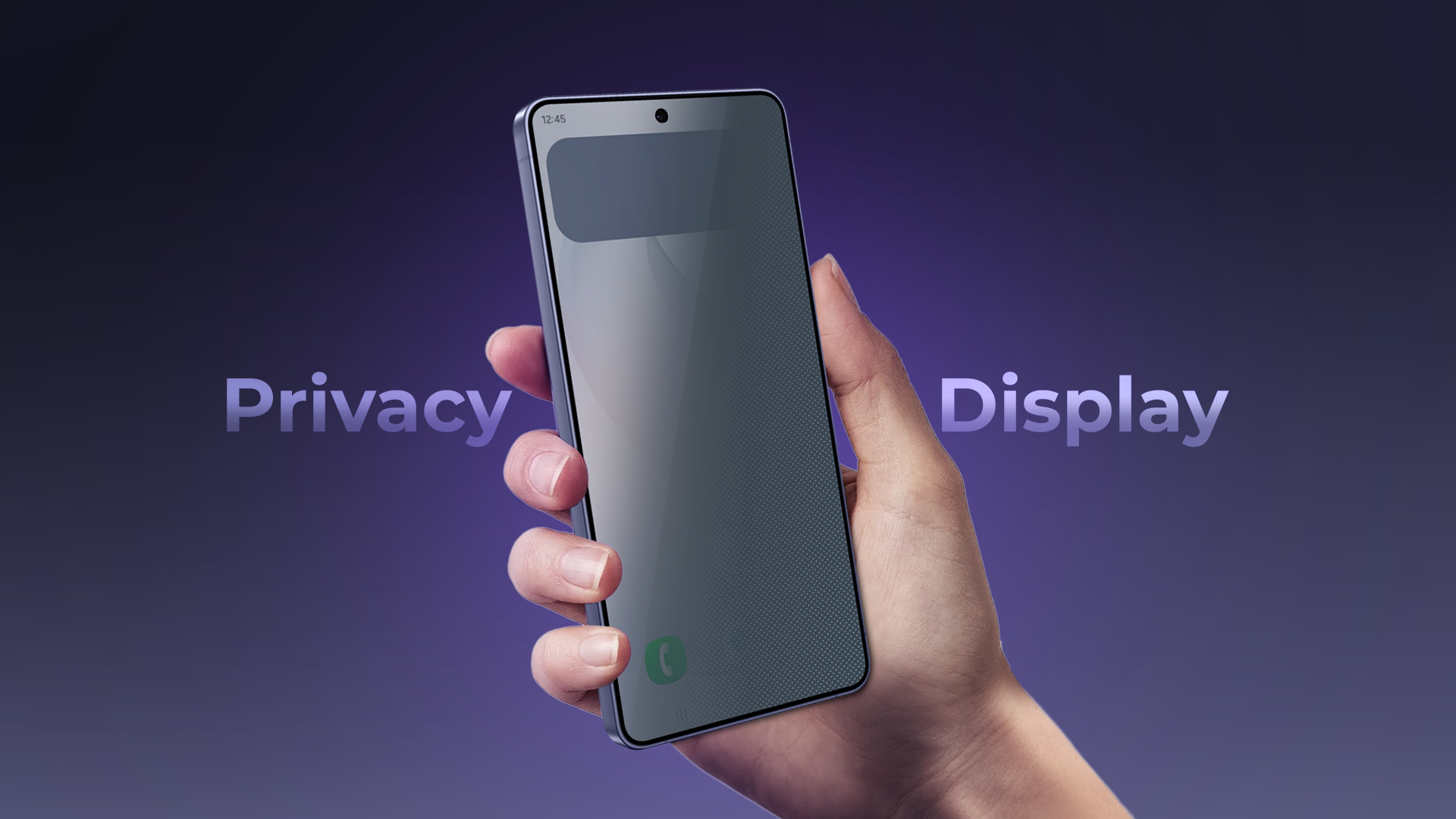
Anyone who has checked a bank balance on a crowded train knows the feeling: someone nearby is reading your screen. For years, the only fix was a stick-on privacy protector that dimmed the display and made it look dull. Now phone makers are building privacy into the display itself. Samsung put what it calls a Privacy Display into the Galaxy S26 Ultra, and Yahoo Tech has since reported that another Android phone has followed with its own privacy screen. This guide explains how the technology works, what it can and cannot do, and how to decide whether it matters for the way you use your phone.
In this article
- What Is a Phone Privacy Screen?
- How Samsung’s Privacy Display Works
- The Trade-Offs You Should Know About
- Do Privacy Screens Actually Protect You?
- Who Should Care About a Privacy Display?
- Add-On Privacy Protectors vs Built-In Displays
- Other Ways to Reduce Screen Snooping
- What to Look for When Shopping
- Looking Ahead
- Practical Settings to Combine With a Privacy Display
- Questions to Ask in the Store
- Frequently Asked Questions
- The Bottom Line
What Is a Phone Privacy Screen?
A privacy screen narrows the angle from which a display can be read. Looking straight at the phone, you see the normal picture. From the side, the image fades or turns dark, so a neighbour on the bus or a stranger in a café sees much less. The idea is not new, since laptop privacy filters have existed for decades, but doing it inside a phone’s OLED panel is a newer engineering challenge.
There are two broad approaches:
 Also readNot Receiving Texts on Android? 10 Fixes I Try, in This Order
- Add-on filters: a film or tempered-glass protector with microscopic louvres that block side light. They work on any phone but often reduce brightness and sharpness all the time.
- Built-in displays: the panel itself controls how widely light is emitted, so privacy can be turned on and off in software.
How Samsung’s Privacy Display Works
According to Tom’s Guide’s explainer, Samsung’s approach narrows the light each pixel emits using a black matrix, so light reaches your eyes but not people viewing from the side. It is built into the screen at pixel level rather than added as a protector. Samsung can also apply the effect to part of the screen while other areas keep normal wide viewing angles, which means you could protect a notification area or a single app window. Details are in the Tom’s Guide explainer on the Galaxy S26 Ultra’s Privacy Display.
Modes and controls
- Default mode: hides content from side angles but does not fully black out the screen. A determined snooper may still get a sense of what is on it.
- Maximum privacy protection: side viewers see a completely blank screen.
- Activation: you can toggle it from Quick Settings or by double-pressing the side key, and it can be automated for sensitive tasks.
Samsung’s suggested uses include banking apps, email, notifications, text messages and authentication screens, which is where most people feel exposed.
The Trade-Offs You Should Know About
| Factor | What to expect |
| Viewing angle | Narrowed for everyone except you, so sharing a video with a friend beside you is harder |
| Head-on picture | Reported to look normal; you may not notice it is on until you tilt the phone |
| Brightness | Unclear in published hands-on tests; the Tom’s Guide author noticed no meaningful difference in a brief test but did not measure it |
| Protection level | Default mode reduces readability rather than guaranteeing a blank screen |
| Cost | A feature of a flagship phone, not an add-on you can buy for an older model |
Because independent lab measurements of brightness and power draw were not published in the sources we reviewed, treat claims of zero impact with caution until more reviews arrive.
Do Privacy Screens Actually Protect You?
They help against casual shoulder surfing, which is the most common real-world risk. A person standing beside you at a ticket machine or sitting next to you on a flight is the typical threat. They do not help against someone directly behind you at a steep enough angle in default mode, against cameras pointing at your screen from the front, or against malware that reads your data. Screen privacy is one layer of protection, not a complete defence.
For the bigger picture, our guide to protecting your online privacy in 2026 covers the habits that matter most, from password hygiene to app permissions.
Who Should Care About a Privacy Display?
- Commuters who read email or banking apps on public transport
- Business travellers working on planes, in airports and in hotel lobbies
- Healthcare, legal and finance workers who handle sensitive client information on a phone
- Anyone who regularly authenticates payments or one-time codes in public
- People who share a living or working space and want private messages to stay private
If you mostly use your phone at home or in a private office, a privacy screen is a nice extra, not a reason to upgrade.
Add-On Privacy Protectors vs Built-In Displays
| Add-on protector | Built-in privacy display | |
| Works on any phone | Yes | No, only supported models |
| Can be switched off | No, always on | Yes, in software |
| Picture quality | Often dimmer and less sharp | Normal when off; reported normal head-on when on |
| Price | Low | Part of a flagship phone |
| Partial-screen protection | No | Possible on Samsung’s implementation |
| Durability | Can scratch or peel | Part of the panel |
If you are not buying a new phone, a good tempered-glass privacy protector remains the practical choice. Check that it does not interfere with your fingerprint sensor or face unlock. Before spending on any upgrade, our article on how to tell if your old phone is still worth keeping can help you weigh a new feature against what you already own.
Other Ways to Reduce Screen Snooping
- Lower your brightness in public, which makes the screen harder to read from the side
- Turn off notification previews on the lock screen
- Use a password manager and biometric login instead of typing credentials in the open
- Angle the phone toward yourself, and use your body to block sightlines
- Use dark mode in public places, since light text on a dark background is less readable at an angle
- Avoid entering PINs while someone is close behind you
What to Look for When Shopping
- Check whether the privacy feature is hardware-level or just software dimming
- Look for independent reviews that measure brightness and battery impact
- Find out whether you can apply it to specific apps or screen regions
- Confirm how quickly it can be turned on, such as from a quick toggle or side key
- Compare the rest of the phone, because privacy is only one of many features
- Ask about software support length, since long updates keep a phone secure
Looking Ahead
When one maker introduces a feature that users can immediately understand, rivals tend to follow, and Yahoo Tech’s report of a second Android phone with a privacy screen suggests that this is happening. Over time, expect better implementations, wider support across price tiers and clearer disclosure of the trade-offs. Until then, the feature is best seen as a useful flagship extra for people who handle sensitive information in public.
Practical Settings to Combine With a Privacy Display
- Set the privacy mode to turn on automatically for banking and messaging apps if your phone allows it
- Use a short screen timeout so that the phone locks quickly
- Hide sensitive notification content on the lock screen
- Use biometrics in public rather than typing a PIN
- Check that screenshots and screen recordings are not sharing sensitive data by accident
- Keep your phone updated, since security updates matter more than any single display feature
A privacy display is helpful, but it works best as part of a set of good habits.
Questions to Ask in the Store
- Can I try the privacy mode and look at the screen from an angle?
- Can it be limited to certain apps or screen areas?
- How does it look in bright sunlight?
- Is there any difference in battery life with the mode turned on?
Frequently Asked Questions
Do privacy screens make the display dimmer?
Add-on protectors usually do. For built-in displays, early hands-on impressions reported no obvious difference head-on, but independent measurements are limited, so check reviews.
Can I add a built-in privacy display to my current phone?
No. It is part of the display hardware. An add-on privacy protector is the closest alternative.
Does a privacy screen stop screenshots or spying apps?
No. It only limits what people nearby can read from the side. It does not protect against malware or screen recording.
Is a privacy display worth paying extra for?
It is most valuable if you often use banking, email or work apps in public. Otherwise, other features may deserve more weight.
The Bottom Line
Phone privacy screens are a sensible answer to a real, everyday problem. A built-in display such as Samsung’s can switch between wide and narrow viewing, which beats a permanent stick-on filter, but it is not a complete shield and the real-world costs in brightness and battery still need independent testing. If you read sensitive information in public every day, it is a genuinely useful feature. If not, strong passwords, careful notification settings and good habits will protect your privacy just as well.
