
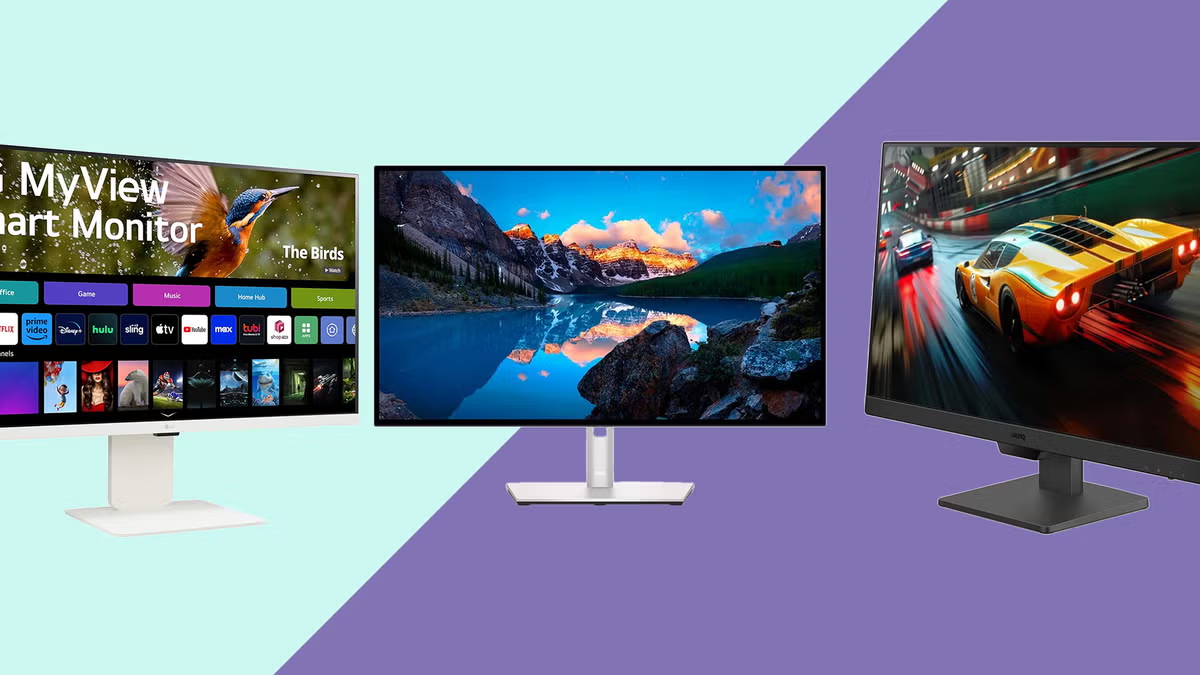
I set up three budget monitors on the same desk, running the same work apps, to figure out which corners actually matter to cut and which ones genuinely hurt the work-from-home experience. Our Best Chromebooks 2026 guide covers a similarly budget-focused comparison for a different home-office purchase.
In this article
- Resolution: Where I Wouldn’t Cut Corners
- Refresh Rate Matters Less Than You’d Think for Office Work
- Panel Type: The Spec Budget Monitors Often Skimp On
- Stand Quality: An Underrated Budget-Monitor Compromise
- Built-In Speakers: Skip Worrying About This
- USB-C with Power Delivery: Worth Checking For
- What I’d Actually Prioritize on a Budget
- My Actual Pick After This Comparison
- Multi-Monitor Setups: A Budget-Friendly Alternative Worth Considering
- Blue Light Filtering: Worth Using, Regardless of Monitor Price
- The Bottom Line
Resolution: Where I Wouldn’t Cut Corners
1080p is genuinely fine at 24 inches or smaller, but stepping up to a 27-inch screen at only 1080p produces visibly soft text that’s noticeably worse for all-day document and browser work. If your budget monitor is 27 inches or larger, 1440p resolution is worth prioritizing over other specs — this was the single biggest quality difference across the three I tested.
- 100% free
- Call direct
- Voice search
- Urdu & English
Refresh Rate Matters Less Than You’d Think for Office Work
60Hz is completely adequate for spreadsheets, documents, email, and video calls — the smoother motion of higher refresh rates matters for gaming and fast-scrolling content, but isn’t something I noticed missing during a full week of ordinary work tasks. RTINGS’ monitor testing methodology backs this up, generally recommending higher refresh rates specifically for gaming use cases rather than general productivity.
 Also readScreen Flickering on Windows 11: 9 Fixes for Laptops and External Monitors
Panel Type: The Spec Budget Monitors Often Skimp On
Budget monitors frequently use TN panels, which are cheaper but have noticeably worse color accuracy and viewing angles compared to IPS panels. For work involving any color-sensitive tasks (photo editing, design review) or simply wanting a monitor that looks good from a normal desk-viewing angle, paying slightly more for an IPS panel monitor made a genuinely visible difference in my side-by-side comparison.
Stand Quality: An Underrated Budget-Monitor Compromise
The cheapest monitor I tested had a stand with no height adjustment at all, forcing an uncomfortable neck angle that a stack of books partially fixed but never fully solved. A monitor with at least basic height adjustment, even without full ergonomic articulation, made a meaningfully bigger comfort difference over a full workday than I expected going in.
Built-In Speakers: Skip Worrying About This
All three budget monitors had genuinely weak built-in speakers, which matched my expectations — this is one spec not worth prioritizing or paying extra for, since virtually anyone doing serious work-from-home audio (calls, music) is better served by separate speakers or a headset regardless of monitor price point.
USB-C with Power Delivery: Worth Checking For
Some budget monitors now include USB-C ports that can both display your laptop’s screen and charge it simultaneously through a single cable — a genuinely convenient feature that eliminates cable clutter if your laptop supports it. a guide to USB-C monitor compatibility is worth checking before assuming any USB-C monitor will work this way with your specific laptop, since power delivery wattage varies by monitor.
What I’d Actually Prioritize on a Budget
- 1440p resolution if going 27 inches or larger — this was the biggest visible quality difference
- IPS panel over TN, especially if the monitor will be viewed from any angle other than dead-center
- At minimum, height-adjustable stand — this affects daily comfort more than most other specs
- Don’t pay extra for high refresh rate or built-in speakers unless you have a specific reason to need them
My Actual Pick After This Comparison
Of the three, the mid-priced option with a 1440p IPS panel and a basic height-adjustable stand offered the best overall balance — noticeably better than the cheapest option for a modest price increase, without paying for gaming-oriented features (high refresh rate, RGB lighting) that don’t help office work at all.
Multi-Monitor Setups: A Budget-Friendly Alternative Worth Considering
Rather than buying one larger, pricier monitor, two smaller budget monitors side by side often costs less in total while providing more usable screen real estate for multitasking between documents, browser tabs, and video calls. This won’t suit every desk or workflow, but it’s genuinely worth considering before assuming a single large display is the only path to a better work-from-home setup.
Blue Light Filtering: Worth Using, Regardless of Monitor Price
All three monitors I tested included some form of blue light reduction setting, and using it during evening work sessions noticeably reduced eye strain for me personally, though the research on blue light’s actual effects remains somewhat mixed. the American Academy of Ophthalmology’s guidance on digital eye strain points to screen brightness and viewing distance as bigger factors than blue light specifically, which is worth knowing before assuming a blue-light filter alone solves eye strain.
The Bottom Line
For a budget work-from-home monitor, resolution and panel type matter more than refresh rate or built-in extras — prioritizing 1440p and IPS at 27 inches, plus basic height adjustment, delivers most of the real-world comfort and clarity benefit without paying for gaming-focused specs you won’t use for office work. For more monitor and home-office setup guides, browse our Gadgets & Accessories category.
