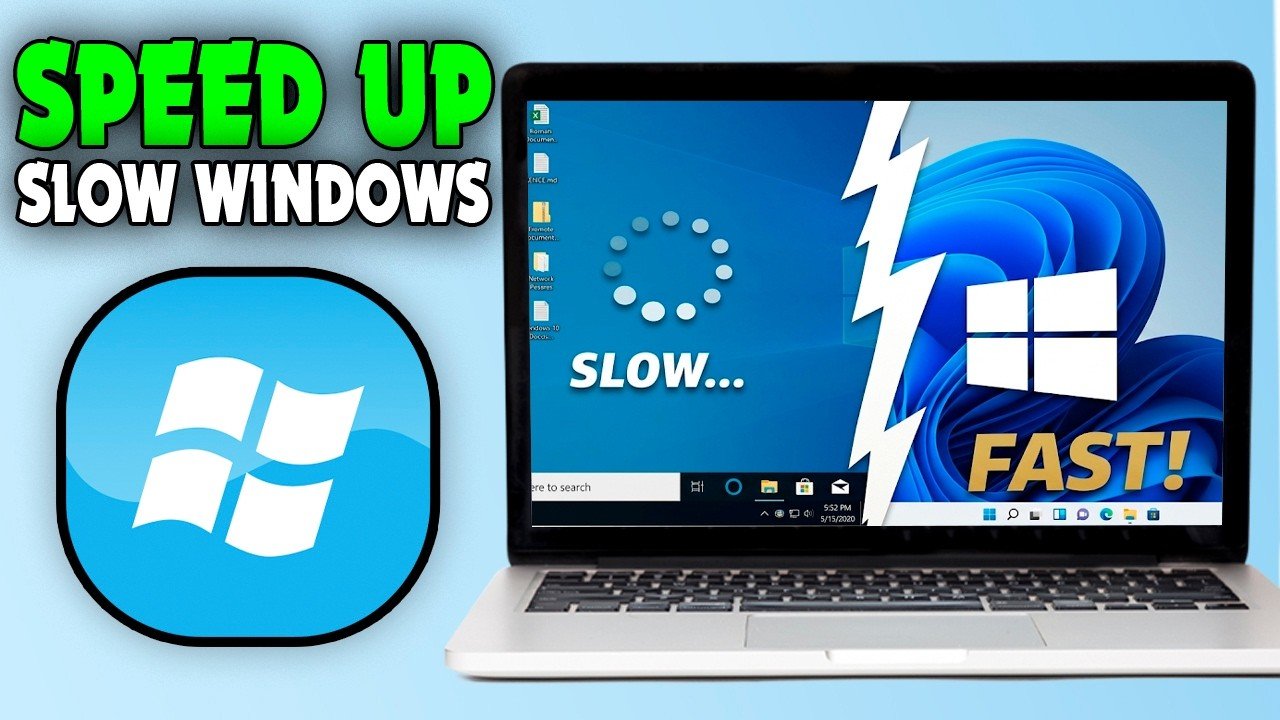
A laptop that’s slowed to a crawl doesn’t always need replacing — in most cases, a handful of targeted fixes can restore much of its original speed without spending a dollar on new hardware. Our Best Budget Laptops Under $600 guide is worth checking if you do ultimately decide an upgrade makes more sense than repair.
In this article
- Start by Identifying What’s Actually Causing the Slowdown
- Check Startup Programs First — The Most Common Culprit
- Storage Drive Health: Often the Real Bottleneck
- How Much Free Storage Space Actually Matters
- RAM: When Adding More Actually Helps
- Browser Bloat: An Underrated Slowdown Source
- Malware and Unwanted Software: Worth Ruling Out
- A Practical Speed-Up Checklist
- When It’s Genuinely Time to Replace Rather Than Repair
- The Bottom Line
Start by Identifying What’s Actually Causing the Slowdown
Before trying random fixes, open your system’s Task Manager (Windows) or Activity Monitor (Mac) to see what’s actually consuming CPU, memory, and disk resources. This single diagnostic step reveals whether you’re dealing with too many background processes, insufficient RAM, a failing or full storage drive, or genuine hardware age — each of which has a different solution. Microsoft’s official guidance on diagnosing slow PC performance walks through this diagnostic process in detail for Windows machines specifically.
- 100% free
- Call direct
- Voice search
- Urdu & English
Check Startup Programs First — The Most Common Culprit
Programs that launch automatically at startup are one of the most common, easily fixed causes of a slow-feeling laptop, particularly on machines that have accumulated software over several years. Disabling unnecessary startup programs (accessible through Task Manager’s Startup tab on Windows, or System Settings’ Login Items on Mac) often produces a noticeable speed improvement within minutes, at zero cost and with minimal risk.
 Also readHow to Check Laptop Battery Health on Windows and Mac (2026 Guide)
Storage Drive Health: Often the Real Bottleneck
A laptop still running on a traditional mechanical hard drive rather than a solid-state drive (SSD) will feel dramatically slower for everyday tasks like booting up and opening applications, regardless of how capable the processor is. Upgrading an older laptop from a mechanical hard drive to an SSD is frequently the single most impactful speed upgrade available, often making an aging laptop feel meaningfully newer for a relatively modest cost. Our Best USB-C Accessories guide covers external storage options if you’re also looking to offload files rather than just upgrading internal storage.
How Much Free Storage Space Actually Matters
Beyond drive type, having very little free storage space remaining meaningfully slows down modern operating systems, which rely on available disk space for temporary files, virtual memory, and system operations. Keeping at least 10-15% of your total storage free, rather than running consistently near-full, avoids this specific and commonly overlooked performance drag.
RAM: When Adding More Actually Helps
If Task Manager shows memory usage consistently near 100% during normal use, adding more RAM (on laptops where this is physically possible — increasingly rare on ultra-thin modern designs) or simply running fewer applications simultaneously will meaningfully help. On laptops with soldered, non-upgradable RAM, managing how many browser tabs and applications you keep open simultaneously becomes the more practical lever available.
Browser Bloat: An Underrated Slowdown Source
Modern browsers with dozens of open tabs, multiple extensions, and accumulated cache data are a surprisingly common source of overall system slowdown, since browsers have become resource-heavy applications in their own right. Periodically clearing browser cache, removing unused extensions, and being mindful of excessive simultaneous tabs meaningfully helps, particularly on laptops with limited RAM. Our Top Productivity Apps guide covers tab management tools specifically designed to address this common problem.
Malware and Unwanted Software: Worth Ruling Out
Persistent, unexplained slowdowns — especially alongside unusual pop-ups, browser redirects, or unfamiliar programs — warrant a malware scan using reputable security software before assuming the issue is purely hardware-related. Malware and aggressive adware are a genuinely common, often overlooked cause of dramatic performance degradation that a simple scan and removal can fully resolve.
A Practical Speed-Up Checklist
- Check Task Manager or Activity Monitor to identify what’s actually consuming resources before guessing at fixes
- Disable unnecessary startup programs, which often produces immediate, noticeable improvement
- Free up storage space if you’re running low, aiming for at least 10-15% free
- Consider an SSD upgrade if you’re still on a mechanical hard drive — often the single highest-impact fix available
- Clear browser cache and reduce open tabs and extensions if browser use is a major part of your daily workload
- Run a malware scan if slowdowns are sudden, severe, or accompanied by unusual pop-ups or redirects
When It’s Genuinely Time to Replace Rather Than Repair
If your laptop is more than 6-7 years old, struggles even after storage and RAM optimizations, or no longer receives security updates from its manufacturer, replacement becomes the more sensible option over continued troubleshooting. At that point, further spending on upgrades for genuinely outdated hardware often costs more than the laptop’s remaining useful value justifies.
The Bottom Line
Most slow laptops can be meaningfully sped up through free or low-cost fixes — managing startup programs, freeing storage space, and clearing browser bloat — before an expensive replacement becomes necessary. An SSD upgrade remains one of the highest-impact fixes for older laptops still running mechanical hard drives, often extending a laptop’s useful life by years at a fraction of replacement cost.