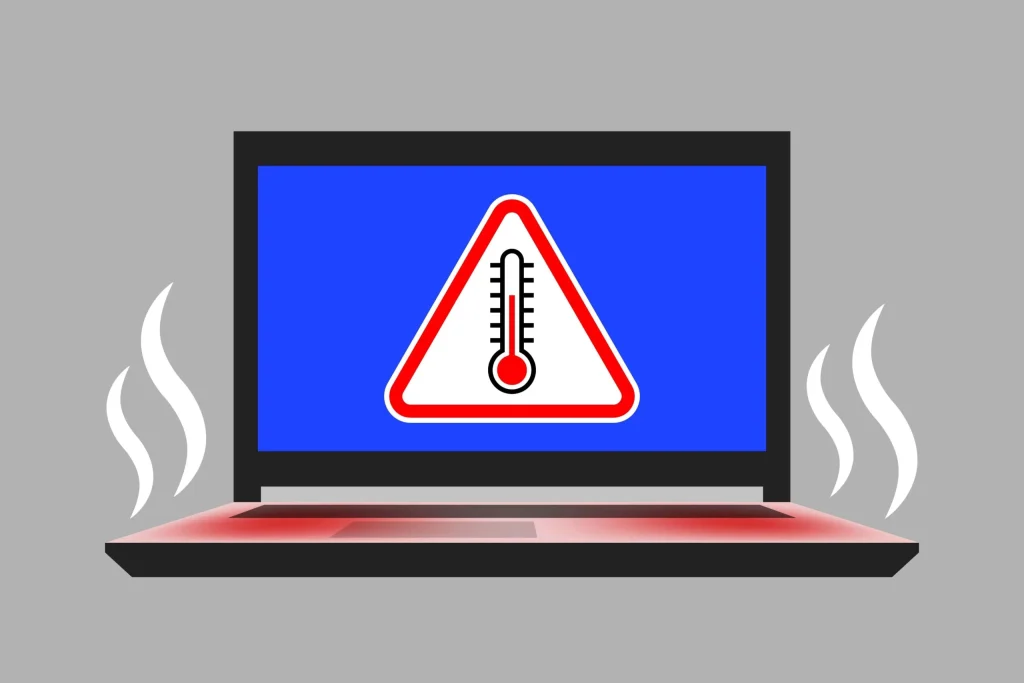
My laptop started shutting itself off mid-task from overheating last month, and working through the actual causes — rather than just buying a cooling pad and hoping — fixed it completely. Our How to Speed Up a Slow Laptop guide covers a related performance issue worth checking if overheating isn’t your only symptom.
In this article
- Start With the Vents, Not the Software
- Check What’s Actually Running in the Background
- The Surface You Use It On Matters More Than People Realize
- Thermal Paste Degradation: A Real Issue on Older Laptops
- Power Settings Can Meaningfully Reduce Heat
- A Step-by-Step Order Worth Following
- When a Cooling Pad Actually Helps (And When It Doesn’t)
- Undervolting: An Advanced Option Worth Knowing About
- Ambient Room Temperature Plays a Bigger Role Than Expected
- The Bottom Line
Start With the Vents, Not the Software
Dust buildup blocking intake or exhaust vents is the single most common cause of laptop overheating, and it’s completely mechanical — no software fix addresses it. Using compressed air to clear visible dust from vents, with the laptop powered off, resolved the majority of the temperature spike in my own case before I even got to any software-level checks.
- 100% free
- Call direct
- Voice search
- Urdu & English
Check What’s Actually Running in the Background
A runaway background process can push CPU usage to near 100% continuously, generating heat that has nothing to do with your hardware’s cooling capacity. Task Manager (Windows) or Activity Monitor (Mac) will show exactly which process is consuming CPU — if something unexpected is pegged high even when you’re not actively using the laptop, that’s worth investigating specifically. Microsoft’s guidance on diagnosing high CPU usage walks through this process in more detail.
 Also readHow to Check Laptop Battery Health on Windows and Mac (2026 Guide)
The Surface You Use It On Matters More Than People Realize
Using a laptop directly on a bed, blanket, or lap blocks the bottom intake vents that most laptops rely on for airflow, trapping heat that would otherwise escape normally. A hard, flat surface — or a laptop stand that elevates the base slightly — restores that airflow without needing any additional cooling hardware at all.
Thermal Paste Degradation: A Real Issue on Older Laptops
On laptops more than 3-4 years old, the thermal paste between the CPU and its heatsink can dry out and lose effectiveness, causing gradually worsening heat over time even with clean vents and normal usage. Reapplying thermal paste is a legitimate fix, though it typically requires opening the laptop chassis — a repair many people are comfortable doing themselves with a guide, while others reasonably prefer a professional for it.
Power Settings Can Meaningfully Reduce Heat
Switching from a “high performance” or “balanced” power plan to a more conservative one can noticeably reduce heat generation during everyday tasks that don’t actually need maximum CPU performance, at the cost of some processing speed during genuinely demanding work. a detailed breakdown of Windows power plan settings covers exactly which settings affect heat generation the most.
A Step-by-Step Order Worth Following
- Clean vents with compressed air (laptop off) before anything else
- Check Task Manager or Activity Monitor for unexpected high CPU usage
- Use a hard, flat surface or laptop stand instead of soft surfaces
- Consider a more conservative power plan for everyday, non-demanding tasks
- On laptops 3+ years old, consider thermal paste reapplication if cleaning and software checks don’t resolve it
When a Cooling Pad Actually Helps (And When It Doesn’t)
Cooling pads help most when a laptop’s own fans are already working hard but airflow around the whole device is restricted — they add supplementary airflow rather than fixing an internal blockage or dried-out thermal paste. Buying one before addressing vent cleaning and surface placement often means paying for a fix that doesn’t address the actual underlying cause.
Undervolting: An Advanced Option Worth Knowing About
For more technically comfortable users, undervolting (reducing the voltage supplied to the CPU without changing its clock speed) can meaningfully reduce heat and power draw with minimal performance loss on many laptops. This requires third-party software and carries a small risk of instability if done incorrectly, so it’s worth researching your specific CPU model’s known-safe undervolt range before attempting it rather than guessing.
Ambient Room Temperature Plays a Bigger Role Than Expected
A laptop that runs fine in an air-conditioned room can genuinely overheat in a warm, poorly ventilated space, since the cooling system’s job becomes harder as ambient air temperature rises. If overheating only happens during certain times of day or in certain rooms, this is worth ruling out before assuming a hardware problem, since no internal fix addresses an environmental heat issue.
The Bottom Line
Laptop overheating is fixable at home more often than people assume — vent cleaning, checking for runaway background processes, and using a proper hard surface resolve the large majority of cases without needing new hardware. Working through these checks in order, before assuming you need a repair or replacement, is worth the twenty minutes it takes. For more laptop troubleshooting guides, browse our Laptops & PCs category.