
Most people use maybe 10% of what their Android phone can actually do. These hidden Android features aren’t gimmicks — they’re genuinely useful tools tucked away in menus most people never open. Here are 10 worth turning on today.
In this article
- 1. Circle to Search
- 2. Split Screen and Floating Windows
- 3. Digital Wellbeing Dashboard
- 4. Private Space
- 5. Built-In Screen Recording
- 6. Nearby Share
- 7. Guest Mode
- 8. Developer Options and Animation Speed
- 9. Clipboard History
- 10. Focus Mode With Location and Time Triggers
- Bonus: Two More Worth Knowing
- How to Actually Remember to Use These
- Why These Stay Hidden
1. Circle to Search
Long-press the home button or navigation handle, then circle, highlight, or scribble on anything on your screen — Google’s AI delivers results, translations, or shopping links without switching apps. It now supports circling multiple objects at once, and it’s genuinely one of the most useful AI features shipping on Android right now.
- 100% free
- Call direct
- Voice search
- Urdu & English
2. Split Screen and Floating Windows
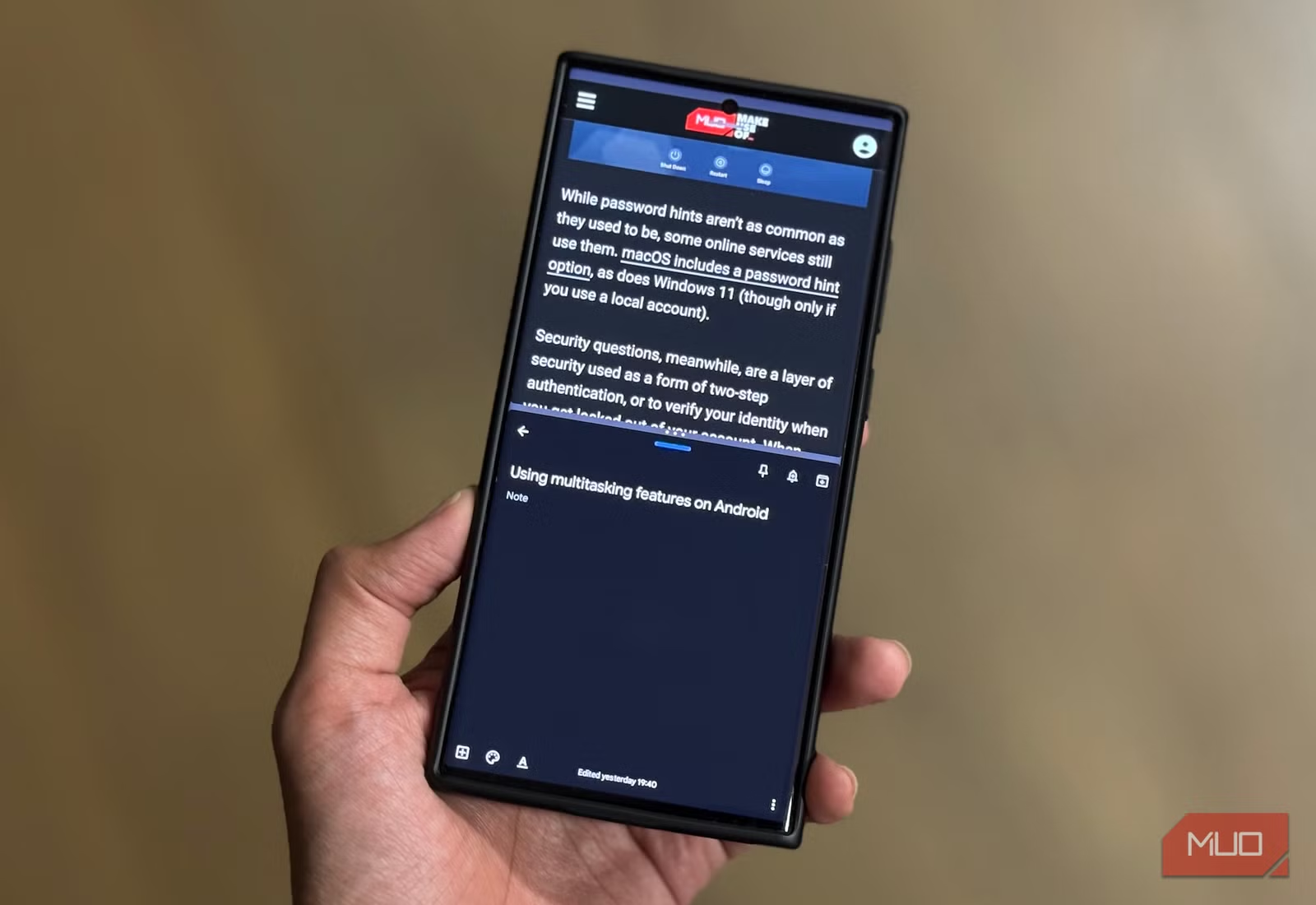
Open your Recent Apps view, tap the icon at the top of any app window, and select Split Screen to run two apps side by side — watch a video while replying to messages, or read while taking notes. Some devices now support a third floating window on top for genuine multitasking.
 Also readHow to Free Up Disk Space on Windows 11: 12 Safe Ways I Use on Every PC
3. Digital Wellbeing Dashboard
Settings → Digital Wellbeing & Parental Controls → Dashboard gives you a full breakdown of your actual phone usage, plus the ability to set App Timers that automatically restrict time-draining apps once you hit your limit.
4. Private Space
A genuinely underused privacy feature that creates a separate, PIN-protected space on your phone for apps and files you don’t want visible in your regular app drawer — useful for anything from banking apps to shared-device situations.
5. Built-In Screen Recording
No need for a third-party app — swipe down to Quick Settings and look for Screen Record. It’s built into modern Android and captures audio along with the screen if you need it.
6. Nearby Share
Android’s answer to AirDrop — quick wireless file transfers between nearby Android devices with no cables, no cloud upload, and no app required beyond what’s already on your phone.
7. Guest Mode
Create a temporary, sandboxed user profile so someone can borrow your phone without touching your messages, photos, or accounts. Settings → System → Multiple users → Add guest.
8. Developer Options and Animation Speed
Tap Build Number seven times under Settings → About Phone to unlock Developer Options, where you can reduce animation speed (try 0.5x) for a noticeably snappier-feeling interface — a small tweak that makes an older phone feel meaningfully faster.
9. Clipboard History
Modern Android keyboards keep a running history of recently copied text, so you’re no longer limited to whatever you copied most recently — a small feature that adds up to real time saved across a normal day.
10. Focus Mode With Location and Time Triggers
Beyond basic Do Not Disturb, Focus Mode can now automatically activate based on location, time of day, or which app you’re using — silencing distracting notifications without you having to remember to turn anything on manually. Pair it with a productivity app that actually respects your time for a setup that genuinely reduces daily friction.
Bonus: Two More Worth Knowing
App Timers and Bedtime Mode
Beyond just tracking usage, Digital Wellbeing lets you schedule a Bedtime Mode that automatically dims the screen, silences notifications, and switches to grayscale in the evening — a small nudge that genuinely helps break the late-night scrolling habit without requiring willpower.
Instant Apps
Android’s Instant Apps feature lets you try certain apps without a full install — useful for one-off tasks like scanning a QR code linked to an app you’ll likely never open again, saving both storage space and install time.
How to Actually Remember to Use These
The honest truth is that most people read a list like this, nod, and forget about it within a day. A better approach: pick two features from this list right now, turn them on immediately while you’re already thinking about it, and give yourself a week of actually using them before coming back for the rest. Features you set up but never revisit don’t help anyone.
Why These Stay Hidden
Phone makers tend to bury features like these under “advanced” settings menus, partly because they’re not essential to basic phone use and partly because surfacing everything at once would overwhelm new users. Once you know where to look, though, they become daily habits — and most take under a minute to turn on.
