
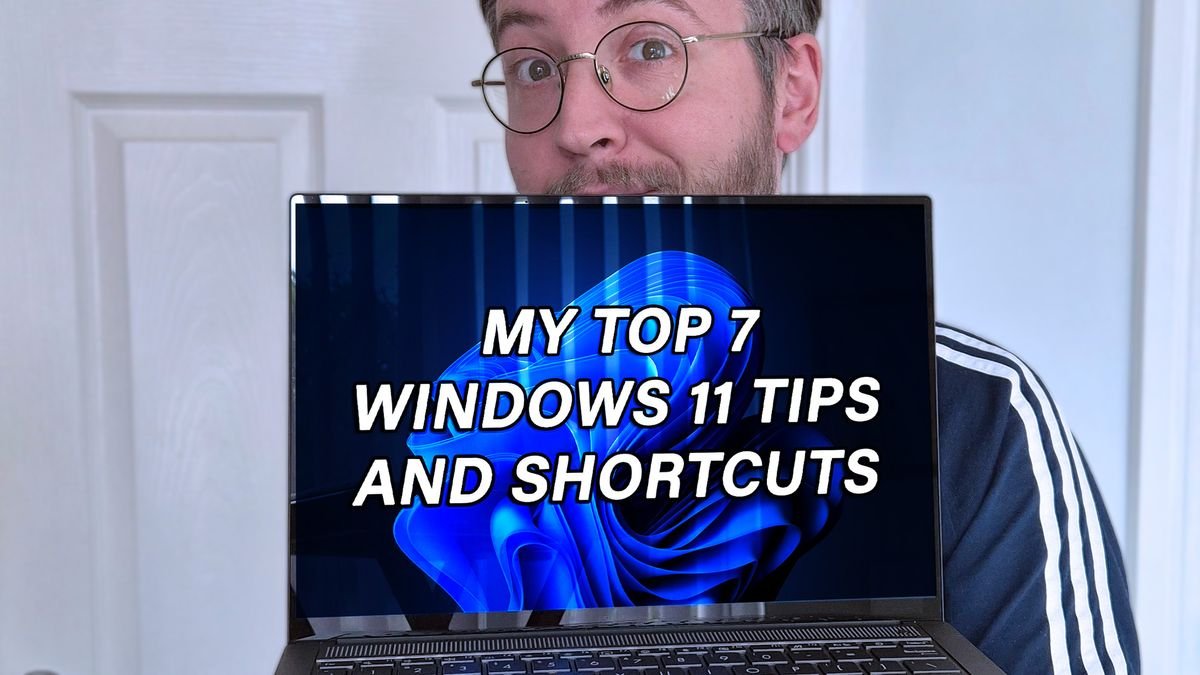
Most Windows users default to a small handful of shortcuts — copy, paste, maybe Alt+Tab — and never explore further. Windows 11 has a genuinely useful set of lesser-known shortcuts that can measurably speed up daily work once they become habit.
In this article
- Windows Key + V: Clipboard History
- Windows Key + Shift + S: Instant Screenshot Tool
- Windows Key + . (Period): Emoji and Symbol Picker
- Windows Key + Number: Instantly Launch or Switch to a Taskbar App
- Windows Key + Tab: Task View With Virtual Desktops
- Alt + Ctrl + Del vs. Ctrl + Shift + Esc
- Windows Key + L: Instant Lock, Without the Menu Detour
- Why These Are Worth Actually Learning
- Frequently Asked Questions
- The Bottom Line
Windows Key + V: Clipboard History
This opens a scrollable clipboard history showing your last several copied items, not just the most recent one — genuinely useful when you’re copying multiple pieces of text or images across different applications and don’t want to lose an earlier copy by pasting something new.
- 100% free
- Call direct
- Voice search
- Urdu & English
Windows Key + Shift + S: Instant Screenshot Tool
Rather than opening a separate Snipping Tool app, this shortcut instantly brings up a screenshot selection overlay, letting you capture a specific region, window, or the full screen directly to your clipboard for immediate pasting.
 Also readMicrophone Not Working on Windows 11? 7 Fixes That Work
Windows Key + . (Period): Emoji and Symbol Picker
This opens a searchable emoji, symbol, and (on newer builds) GIF picker directly in whatever text field you’re currently in — useful well beyond casual chat apps, since it also includes special characters and symbols that are otherwise awkward to type.
Windows Key + Number: Instantly Launch or Switch to a Taskbar App
Windows Key + 1 launches or switches to whatever app is pinned first on your taskbar, Windows Key + 2 the second, and so on — a genuinely fast way to jump directly to a specific frequently-used app without hunting for it visually.
Windows Key + Tab: Task View With Virtual Desktops
Beyond just showing open windows, this reveals Windows 11’s virtual desktop switcher, letting you organize different projects or contexts (work, personal, a specific task) into separate desktop spaces you can switch between cleanly rather than hunting through one crowded taskbar.
Alt + Ctrl + Del vs. Ctrl + Shift + Esc
Most people know Ctrl+Alt+Del brings up the security screen with options including Task Manager, but Windows Central’s own shortcuts roundup points out that Ctrl+Shift+Esc jumps directly into Task Manager in a single step, skipping the intermediate screen entirely — a small but genuinely time-saving difference when you need to force-close a frozen application quickly.
Windows Key + L: Instant Lock, Without the Menu Detour
Rather than clicking your profile icon and navigating to “Lock” through the Start menu, this shortcut locks your PC immediately — worth building into muscle memory specifically for anyone stepping away from a shared or public workspace regularly.
Why These Are Worth Actually Learning
None of these shortcuts individually save more than a few seconds, but the cumulative effect over a full workday of avoiding repeated menu-hunting adds up meaningfully. The genuinely useful ones — clipboard history and the instant screenshot tool specifically — tend to become permanent habits once tried a handful of times.
Frequently Asked Questions
Do these shortcuts work the same way on Windows 10?
Most of them do, though clipboard history and some virtual desktop features were introduced or significantly improved in more recent Windows versions, so exact behavior can vary slightly on older builds.
Can I customize or reassign these keyboard shortcuts?
Some, through Windows Settings or third-party utilities, though core system shortcuts like Windows Key + L generally aren’t reassignable through standard settings.
The Bottom Line
A handful of genuinely useful Windows 11 shortcuts remain unknown to most users simply because there’s no obvious prompt to discover them. Building even two or three of these into daily habit is a low-effort way to shave real time off routine computer use.
