
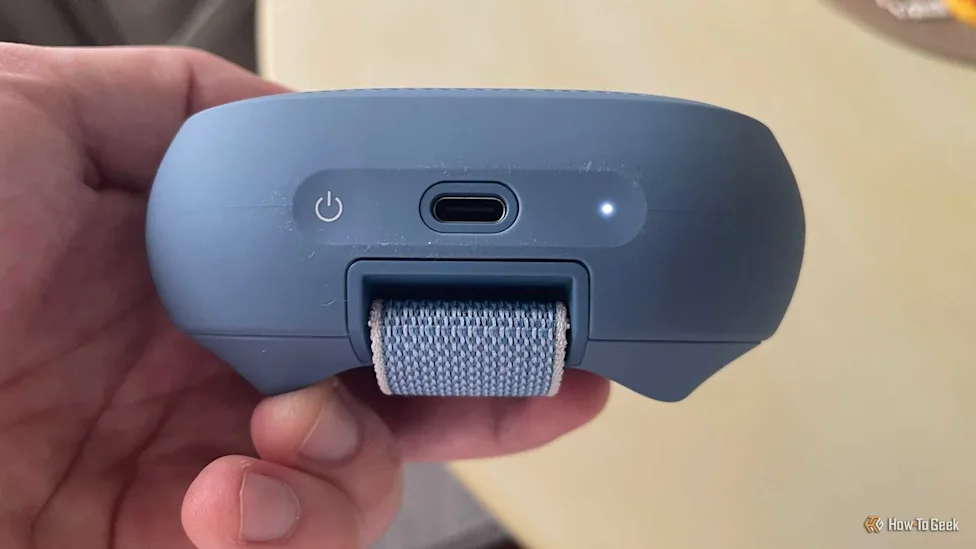
USB-C has become the universal connector on modern phones, laptops, and tablets, but the physical shape of the port tells you almost nothing about what it can actually do. Two devices with an identical-looking USB-C port can support wildly different capabilities underneath.
In this article
- Charging: The Feature Everyone Knows
- Data Transfer: Where Speeds Vary Enormously
- Video Output: Turning a Laptop Port Into a Monitor Connection
- Thunderbolt: The Premium Tier Hiding Inside the Same Connector
- Why This Confusion Actually Matters for Buyers
- How to Check What Your Specific Port Supports
- Frequently Asked Questions
- The Bottom Line
Charging: The Feature Everyone Knows
USB-C’s most visible job is power delivery, and USB Power Delivery (USB PD) allows far higher wattages than older USB standards ever supported — enough to charge a full laptop, not just a phone. This is why USB-C has largely replaced proprietary charging bricks across most device categories over the past several years.
Data Transfer: Where Speeds Vary Enormously
A USB-C cable can carry anywhere from USB 2.0 speeds (480 Mbps) up to USB4 speeds (40 Gbps or higher) — an enormous range hidden behind an identical-looking connector. This is the single biggest source of USB-C confusion: a cheap USB-C cable bundled with an accessory is often built only for charging and basic data, not the full speed the port itself supports.
 Also readScreen Flickering on Windows 11: 9 Fixes for Laptops and External Monitors
Video Output: Turning a Laptop Port Into a Monitor Connection
Many USB-C ports support DisplayPort Alt Mode, letting you connect directly to an external monitor without a separate video cable or adapter, sometimes even carrying 4K or higher resolution and refresh rates depending on the specific port and cable. This single-cable capability is part of why USB-C docking stations have become so popular for laptop setups — one cable can carry power, video, and data simultaneously.
Thunderbolt: The Premium Tier Hiding Inside the Same Connector
Thunderbolt 3, 4, and 5 all use the physical USB-C connector but add significantly higher bandwidth and support for features like external GPU enclosures and daisy-chaining multiple high-resolution displays. According to How-To Geek’s breakdown of USB-C’s full capability range, a laptop’s Thunderbolt-labeled ports are meaningfully more capable than its standard USB-C ports, even though visually you often can’t tell the two apart without checking the manual or looking for a small lightning-bolt icon next to the port.
Why This Confusion Actually Matters for Buyers
Assuming any USB-C cable or port does everything is a genuinely common, avoidable mistake — buying a $5 charging-only cable and being confused why your external monitor won’t connect, or wondering why file transfers to an external drive feel slow despite having a “USB-C” drive and port. Checking the specific standard (USB 3.2, USB4, Thunderbolt) rather than just the connector shape is the only reliable way to know what you’re actually getting.
How to Check What Your Specific Port Supports
Your laptop or phone’s official spec sheet will list the exact USB-C standard for each port, and it’s genuinely common for a single device to have multiple USB-C ports with different capabilities — one full-featured Thunderbolt port and one basic charging-only port isn’t unusual on a mid-range laptop. When buying a cable specifically for video output or fast external drive transfers, look for cables explicitly labeled with the speed or DisplayPort/Thunderbolt support rather than assuming any USB-C cable works identically.
Frequently Asked Questions
Can I use any USB-C cable to charge any USB-C device?
Generally yes for basic charging, though very high-wattage laptop charging may require a cable specifically rated for that power level — a thin cable bundled with a phone charger may not safely handle a laptop’s full charging wattage.
Does a USB-C port always mean fast data transfer?
No — the connector shape alone says nothing about speed. Checking the specific USB standard (2.0, 3.2, USB4, Thunderbolt) is the only way to know actual transfer speed.
The Bottom Line
USB-C’s biggest strength — one connector shape for charging, data, video, and more — is also its biggest source of consumer confusion. Knowing to check the underlying standard rather than trusting the port shape alone saves real frustration when a cable or accessory doesn’t do what you expected.
