Quick answer: On Windows, run powercfg /batteryreport and compare “Full charge capacity” with “Design capacity.” On a Mac, open System Settings > Battery > Battery Health. Below about 80% of the original capacity, most laptops feel noticeably weaker.
- 100% free
- Call direct
- Voice search
- Urdu & English
If your laptop dies faster than it used to, the battery is probably wearing out. This DailyTechReview guide shows how to check battery health on Windows and Mac in a few minutes, what the numbers mean, and when a replacement makes sense. Use the free calculator below to turn the numbers into a clear health score.
 Also readMicrophone Not Working on Windows 11? 7 Fixes That Work
In this article
- What Is Laptop Battery Health?
- Windows vs Mac: How to Check
- How to Check Battery Health on Windows
- How to Check Battery Health on a Mac
- Free Battery Health Calculator
- What Wears a Battery Out Faster?
- Who Should Check?
- Repair or Replace the Laptop?
- Safety Signs: Stop Using the Battery
- How to Get Started
- Frequently Asked Questions
- Final Thoughts
- Explore More
What Is Laptop Battery Health?
Battery health is how much charge your battery can hold today compared with when it was new. Lithium-ion batteries lose capacity slowly with every charge cycle and with age.
- Design capacity: what the battery held when new, usually in mWh.
- Full charge capacity: what it holds today.
- Cycle count: how many full charge cycles it has used. Two half charges count as one cycle.
- Health %: full charge capacity divided by design capacity.
Windows vs Mac: How to Check
| Step | Windows 10 / 11 | macOS |
|---|---|---|
| Where to look | Command Prompt battery report | System Settings > Battery |
| Capacity shown as | mWh (design and full charge) | “Maximum Capacity” % on recent Macs |
| Cycle count | In the report (if the laptop provides it) | System Information > Power |
| Warning shown | No built-in warning | “Service Recommended” when worn |
How to Check Battery Health on Windows
1. Open Command Prompt
Press the Windows key, type cmd and open Command Prompt.
2. Create the report
Type powercfg /batteryreport and press Enter. Windows saves a file called battery-report.html and shows its location.
3. Read the numbers
Open the file in your browser. Under “Installed batteries,” note Design Capacity, Full Charge Capacity and Cycle Count. Scroll to “Battery capacity history” to see how capacity has dropped over time.
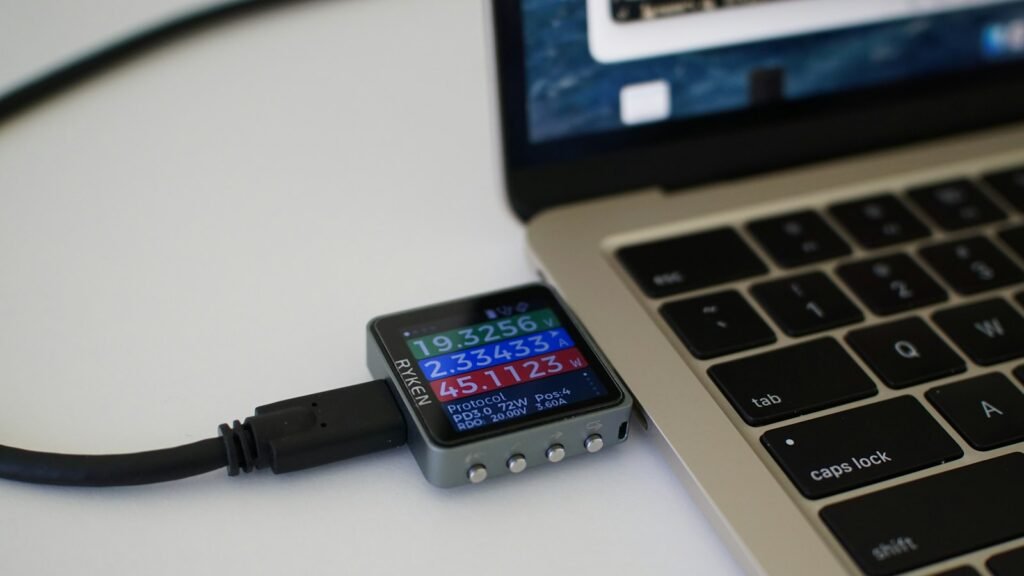
How to Check Battery Health on a Mac
- Open the Apple menu > System Settings > Battery.
- Click the info button next to Battery Health to see the condition and, on recent Macs, Maximum Capacity.
- For the cycle count, hold Option, click the Apple menu, choose System Information, then Power.
Apple lists the rated cycle count for each Mac model on its battery cycle count support page.
Free Battery Health Calculator
Enter the numbers from your battery report. The calculator shows your health score and what to do next. Nothing is saved or sent.
Battery Health Calculator
Use the values from the Windows report or your Mac’s settings.
What Wears a Battery Out Faster?
- Heat: gaming or using the laptop on a bed or sofa traps heat.
- Always at 100%: staying plugged in at full charge for months adds stress.
- Deep drains: regularly running to 0% is hard on lithium-ion cells.
- Cheap chargers: poor-quality chargers can deliver unstable power.
Who Should Check?
- Students: before exams and long days on campus.
- Freelancers: before travelling with a laptop for work.
- Second-hand buyers: always check before paying for a used laptop.
- Small businesses: plan replacements before staff laptops fail.
Repair or Replace the Laptop?
A worn battery alone is rarely a reason to replace a whole laptop. If the rest of the machine is fast enough, a new battery usually costs far less than a new computer. Replace the laptop when it is also slow, out of support or physically damaged.

Safety Signs: Stop Using the Battery
- The case or trackpad is lifting or bulging.
- The battery gets very hot when idle.
- You smell a sweet or chemical odour.
A swollen battery can be a fire risk. Power off, unplug and get it replaced by a professional.
How to Get Started
- Create the battery report on Windows or open Battery Health on Mac.
- Note design capacity, full charge capacity and cycles.
- Enter them in the calculator above.
- Turn on a charge limit or optimized charging.
- Keep the laptop cool and off soft surfaces.
- Plan a replacement when health drops below about 80% and runtime no longer fits your day.
Frequently Asked Questions
What is a good battery health percentage?
Above 80% is generally healthy. Many makers treat around 80% of original capacity as the point where a battery is considered worn.
Can battery health go back up?
Not really. Calibration can make the reading more accurate, but lost chemical capacity does not return.
Is it bad to keep my laptop plugged in all the time?
Keeping it at 100% and warm for long periods speeds up wear. Use a charge limit if your laptop offers one.
Why does my Windows report show no cycle count?
Some laptops do not report cycles to Windows. Use the capacity numbers instead.
How long do laptop batteries last?
Often two to four years of regular use, depending on cycles, heat and charging habits.
Can I replace the battery myself?
On some laptops, yes. Many modern thin laptops have glued batteries, so a repair shop is safer.
Final Thoughts
- Health = full charge capacity ÷ design capacity.
- Windows: battery report. Mac: Battery Health in System Settings.
- Below about 80%, consider a battery replacement.
- Heat and constant 100% charging are the biggest enemies.
Explore More
- More Laptops & PCs guides on DailyTechReview
- Gadgets & Accessories
- For simple guides on AI, security and new tech, visit TechWiseToday.
Sources: Apple Support: Mac battery cycle counts · Microsoft Learn: powercfg command-line options