Windows 10 Security Updates Now Run Until October 2027: 5 Ways to Stay Covered

If you still run Windows 10 at home, you have probably read three different deadlines and trusted none of them. Support officially ended on October 14, 2025, and plenty of articles still say the consumer safety net stops in October 2026. Microsoft’s own page now says something different. Before you spend money on a new laptop, it is worth ten minutes to see what your options really are, starting with a quick check of your connection using our Wi-Fi speed guide, because big Windows downloads are miserable on a shaky network.
What Actually Changed With Windows 10 Support
Windows 10 reached end of support on October 14, 2025. That means no free security patches, feature updates, or technical support for the regular version. Microsoft then opened a consumer Extended Security Updates program, usually shortened to ESU, which delivers only critical and important security fixes for Windows 10 version 22H2.
According to Microsoft’s consumer ESU page, you can enroll any time until the program ends on October 12, 2027, and enrolled devices receive updates released since the October 2025 cutoff. Some older articles still quote October 13, 2026, so treat the official page as the source of truth, because these dates can change.
Who Can Enroll in Consumer ESU
- The PC must run Windows 10 version 22H2 (Home, Pro, Pro Education, or Workstations)
- The latest Windows updates must already be installed
- The Microsoft account used to sign in must be an administrator, and it cannot be a child account
- The device cannot be used in commercial scenarios such as kiosk mode or an Active Directory or Microsoft Entra domain, according to Microsoft
Regional rules can differ, notably in the European Economic Area, so check the version of the page shown for your country before you plan anything.
Way 1: Enroll for Free by Syncing Your PC Settings
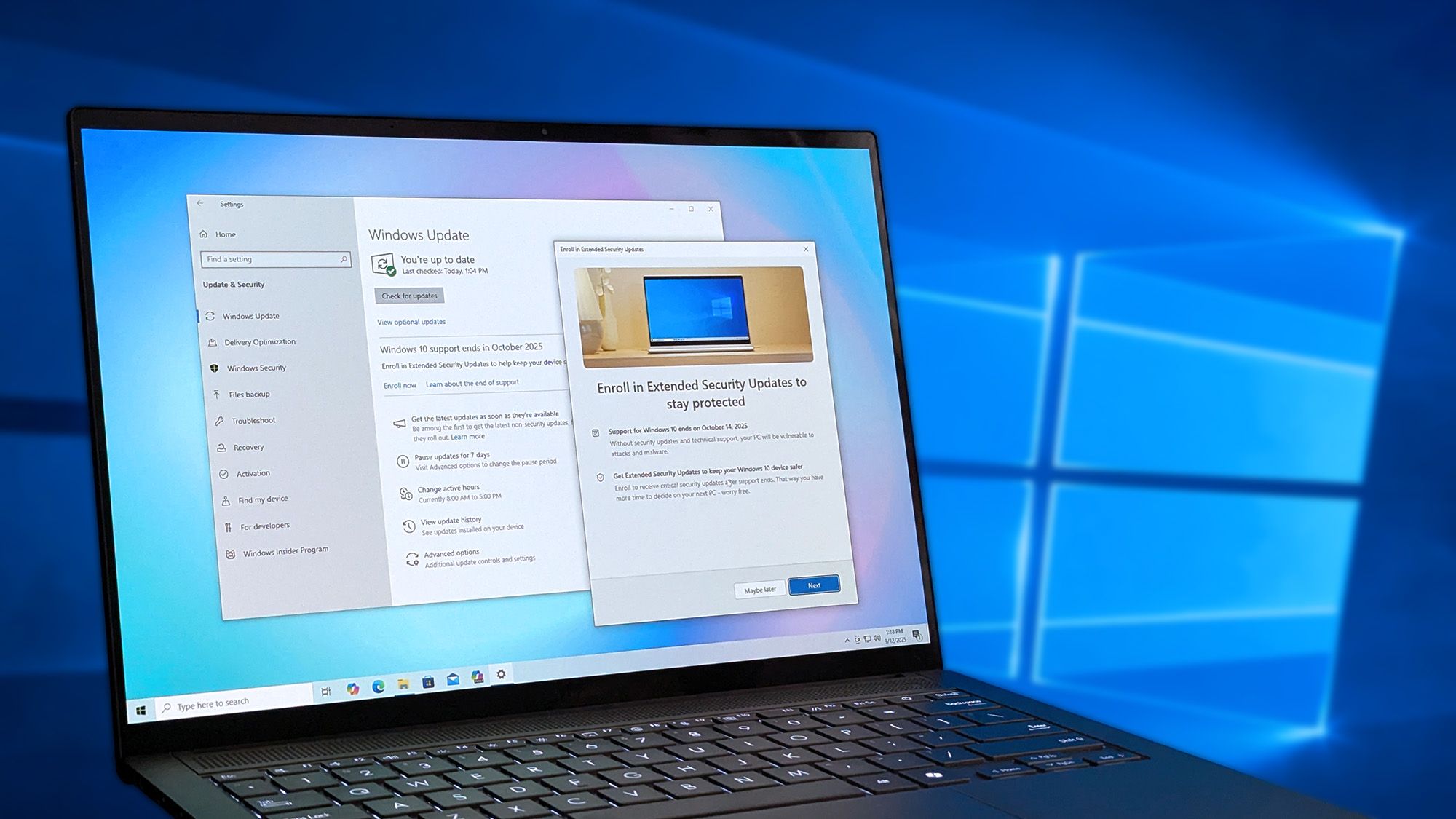
The cheapest route costs nothing. If you turn on Windows Backup to sync your PC settings to your Microsoft account, Microsoft says you can enroll at no additional cost. Open Settings, go to Update & Security, then Windows Update, and select Enroll now when the link appears.
The catch is privacy and convenience: you must sign in with a Microsoft account and let Windows back up settings. If you prefer local accounts and minimal cloud syncing, one of the paid routes below may suit you better.
Way 2: Redeem 1,000 Microsoft Rewards Points
If you already collect Microsoft Rewards points through searches and purchases, you can redeem 1,000 points to enroll. Microsoft notes these Rewards orders are final and not eligible for return or exchange, so make sure you are choosing the right device and account before confirming.
Way 3: Pay the One-Time $30 Fee
Microsoft lists a one-time purchase of $30 USD, or the local currency equivalent, plus applicable tax. One license can cover up to 10 devices signed in with the same Microsoft account, which makes it good value for a household with several old PCs. Refunds follow Microsoft’s digital purchase policy for your country.
Way 4: Upgrade to Windows 11 for Free If Your PC Qualifies
The strongest long-term fix is moving to Windows 11 if your hardware supports it. Microsoft offers a PC Health Check app and a Windows 11 specifications page so you can confirm eligibility before downloading anything. Enrolling in ESU does not stop you from upgrading later.
Before any major upgrade, back up your files somewhere separate. If you are unsure where to store them, our cloud storage buying guide explains how to pick a service without overpaying.
Way 5: Replace the PC or Switch Systems
If your machine cannot run Windows 11, ESU only buys time. A newer Windows 11 PC is the simplest path, and refurbished models can keep costs down. Some people with older hardware try lightweight Linux distributions or ChromeOS-style alternatives, but that means learning a new system and confirming your apps and printers still work first.
Quick Comparison of the Five Options
| Option | Cost | Best for | Watch out for |
| Sync settings ESU | Free | People happy to use a Microsoft account | Cloud syncing must stay on |
| Rewards points ESU | 1,000 points | Rewards collectors | Final sale, no refund |
| Paid ESU | $30 one time plus tax | Households with up to 10 PCs | Updates only, no support |
| Windows 11 upgrade | Free if eligible | Newer PCs | Hardware requirements |
| New or refurbished PC | Varies | Unsupported hardware | Migration time and cost |
How to Enroll in ESU Step by Step
- Install all pending Windows updates and restart
- Go to Settings, Update & Security, Windows Update
- Select Enroll now if the option appears
- Sign in with your Microsoft account if prompted
- Choose sync, Rewards, or purchase, then confirm
- Return to Windows Update and confirm your enrollment status
If the Enroll now link never appears, the usual causes are missing updates, a non-administrator account, or a device Microsoft does not treat as eligible.
Common Mistakes to Avoid
- Assuming Windows 10 stops working: it keeps running, but unpatched systems are riskier
- Enrolling one PC and forgetting the others in the house
- Skipping backups before upgrading
- Trusting an old blog post over Microsoft’s current page
- Using ESU as a permanent plan instead of a bridge
Staying Safer While You Are Still on Windows 10
ESU covers operating-system patches, not your browser or apps. Keep your browser and antivirus updated, use a standard user account for daily work, avoid pirated software, and enable a password manager and multi-factor authentication. Treat every unexpected email attachment with suspicion, since attackers love unmanaged, older systems.
When Is the Right Time to Move On?
Use ESU as breathing room, not a destination. Plan your move well before the program ends: audit your apps, check whether your printer and accessories have Windows 11 drivers, and choose a weekend for the switch rather than doing it in a panic. You can also find more practical guides on DailyTechReview.
What Each Route Really Costs a Household
Imagine a family with three older Windows 10 laptops. Enrolling through settings sync or Rewards points costs nothing in cash, and a single $30 license can cover all three, since Microsoft allows one license on up to 10 devices. Compare that with replacing three laptops. ESU does not fix slow hardware, but it can buy a year of safe use while you save for the one machine that really needs replacing first.
A Realistic Checklist Before You Move to Windows 11
- Run the PC Health Check app or review the official specifications
- Back up documents, photos, and browser bookmarks to two places
- Note your software license keys and installer files
- Update your BIOS or firmware and drivers if the maker recommends it
- Free at least 30 GB of storage so the installer has room
- Make sure the laptop is plugged in and the connection is stable
- Set aside a couple of hours rather than squeezing it into a lunch break
Old Printers, Scanners, and Accessories
Hardware that still works can be the hidden cost of an upgrade. Before you switch, visit the manufacturer’s support page for your printer, scanner, and webcam and confirm there are Windows 11 drivers. If a device is unsupported, decide whether a generic driver will do or whether it is time to replace that one accessory rather than the whole PC.
Signs Your PC Is Better Replaced Than Kept
Replace the machine, not just the software, when it struggles with basic tasks, has a failing battery or storage drive you cannot economically repair, or falls short of Windows 11’s requirements. Spending your ESU year on a plan is smarter than spending it hoping the old laptop will somehow keep up.
Privacy Trade-Offs of the Free Sync Option
The free route asks you to sync PC settings through your Microsoft account, which stores preferences such as themes, language, and some app settings in Microsoft’s cloud. It does not mean all your files are uploaded, but you should read what Windows Backup includes before turning it on. If you are uncomfortable, the $30 purchase or Rewards points give you ESU without that particular syncing step.
Frequently Asked Questions
Does Windows 10 stop working after support ends?
No. It keeps running, but without regular security updates it becomes a bigger target, which is why ESU or an upgrade matters.
Do I need to enroll every user account?
No. Microsoft says once any user on a PC enrolls, other users on that PC are also covered, though each separate PC needs enrollment.
Will ESU give me new features or technical support?
No. It provides critical and important security updates only, with no feature improvements or technical support.
The Bottom Line
Windows 10 owners have more time than many articles suggest, but ESU is a bridge, not a home. Enroll if you need the breathing room, verify the dates on Microsoft’s page, back up your files, and plan a proper move to Windows 11 or a newer PC before the program ends.

The DailyTechReview team covers the latest in smartphones, laptops, AI technology, and everyday gadgets — testing, comparing, and breaking down what's actually worth your money. Our editorial team combines hands-on testing with independent research to bring you buying guides and reviews you can trust, without the marketing fluff.